The MiMrail manual
Everything MiMrail does, and how to do it: choosing your railway, laying its track, fitting the layout into your room, checking it, and taking it off the screen as templates, laser-cut sleepers and 3D-printed sleeper strips.
Written for MiMrail 0.2, October 2026. The pictures are taken from the app itself.
MiMrail is in preview
This first public version is here so you can try MiMrail and tell me what you think while the loose ends are tidied up. During the preview, the buttons that save work out of the app (prints, SVG, STL, DXF and the other downloads) are greyed out. Everything else works, including saving your layout to a file, so nothing you plan now is lost.
The manual describes those exports in full, so you know what's coming and can check your plan is ready for them.
1What MiMrail is
MiMrail is a planner for model railway track and layouts that knows how real railways built their pointwork, country by country. You say where your railway is, lay the track the way that railway laid it, and MiMrail draws every rail, sleeper and baseplate to the railway's own rules, at the size of the model you're building.
It isn't CAD. You don't draw lines and arcs and hope they meet, and you don't need to know what a closure curve is or where the crossing nose falls. You choose a turnout by its railway's name (a DB EW 190-1:9, an SBB EW 185-1:7, an AREA No. 8, a Network Rail C10) and MiMrail builds it from that railway's design rules. Click to lay track and the pieces join on by themselves. Then the checks tell you what's wrong: clashes, curves that are too tight, aisles that are too narrow, pointwork across a baseboard joint.
When the plan is right, MiMrail gives you three ways to build it:
- Printed templates, full size, tiled over A4 or Letter sheets, to build on in the traditional way.
- 3D-printed sleeper strips (STL files): sleepers, baseplates and fastenings in one piece, sized to the model rail you actually use. You slide the rail in.
- Laser-cut sleepers (SVG sheets), for narrow gauge now and the other railways to follow.
It runs in your web browser. There's nothing to install and no account to create. Your layouts are saved as small files on your own computer.
Where it came from
MiMrail grew out of TrackIT! (British BS113A pointwork in full detail), TrackIT! USA (AREA and AREMA) and TrackIT! EU (DB, SBB and SNCF), and it takes over the layout planning that PlanIT! did. TrackIT! carries on as the place where British turnouts are designed to the chair. PlanIT! projects open in MiMrail (see Opening a PlanIT! project).
What you need
- A desktop or laptop computer with a mouse. MiMrail will open on a tablet, but planning needs a pointer and a keyboard.
- A current browser. Chrome or Edge are best: they let MiMrail save straight back to your layout file as you work. Firefox and Safari work too, but Save downloads a fresh copy of the file each time.
- An internet connection for the maps, the OpenStreetMap tracing and the 3D view (which loads its 3D library the first time it's opened). Planning track works without one.
Words used in this manual
- Piece
- One thing on the layout: a straight, a curve, a turnout, a crossover, a diamond, a slip. Each has a number.
- Open end ◯
- The end of a piece with nothing joined to it. New track is joined on at open ends.
- Track
- A chain of pieces joined end to end from one start. A layout can have many separate tracks, later joined together.
- Line
- A run of plain track joined into one piece with one name (for example "Down Main").
- Prototype / model
- The real railway, and your model of it. MiMrail can show sizes either way.
- Ties / sleepers / bearers
- The same thing in different countries. MiMrail uses the words of the railway you've chosen, and this manual mostly says sleepers.
- Frog / crossing
- Likewise: American and British words for the same part.
- Datum
- The height everything is measured from: the top of the baseboard where the track is level.
2Your first layout, in ten minutes
A quick tour before the detail. This lays a small German station throat in H0. Every step is explained properly later.
- Open MiMrail. From the home page, choose Europe, then Deutschland. The app opens with DB's turnouts, S49 rail, metric units and H0 to NEM 110.
- Lay a straight. On the right, in Add a piece, press + Straight. A 30 m straight (prototype) appears, heading east from the origin. Its far end has a small circle: an open end.
- Add a turnout. Click that open end ◯ on the plan to choose it, then press + Turnout. An EW 190-1:9 joins on by its points end.
- Draw some track. Press A (a curve), click the turnout's diverging end ◯, then click on the plan where you want the curve to go. Each click lays a piece. Press Esc twice when you're done.
- Add a siding. Click the turnout to select it. In its window, under Parallel track, press ⇤ Make a siding. MiMrail curves a siding back alongside the main line at the railway's track centres.
- Look at it closely. Double-click the turnout to open it in detail: every dimension, the sleeper bill and the template. ← Back to the layout (or Esc) returns.
- Check it. The status bar at the foot says Checks clear, or how many things there are to look at. Click it to see them.
- Save it. Press Save as… and choose where to keep the file. From then on, every change is saved to it automatically (in Chrome and Edge).
Press ? at any time for the list of keys, and hover over any button for what it does and its shortcut.
3Where is your railway?
The first thing MiMrail asks is where your railway is, because that decides everything else: the turnouts, the rail, the sleepers, the units, the model standards, the maps and even the words on the screen.
The home page
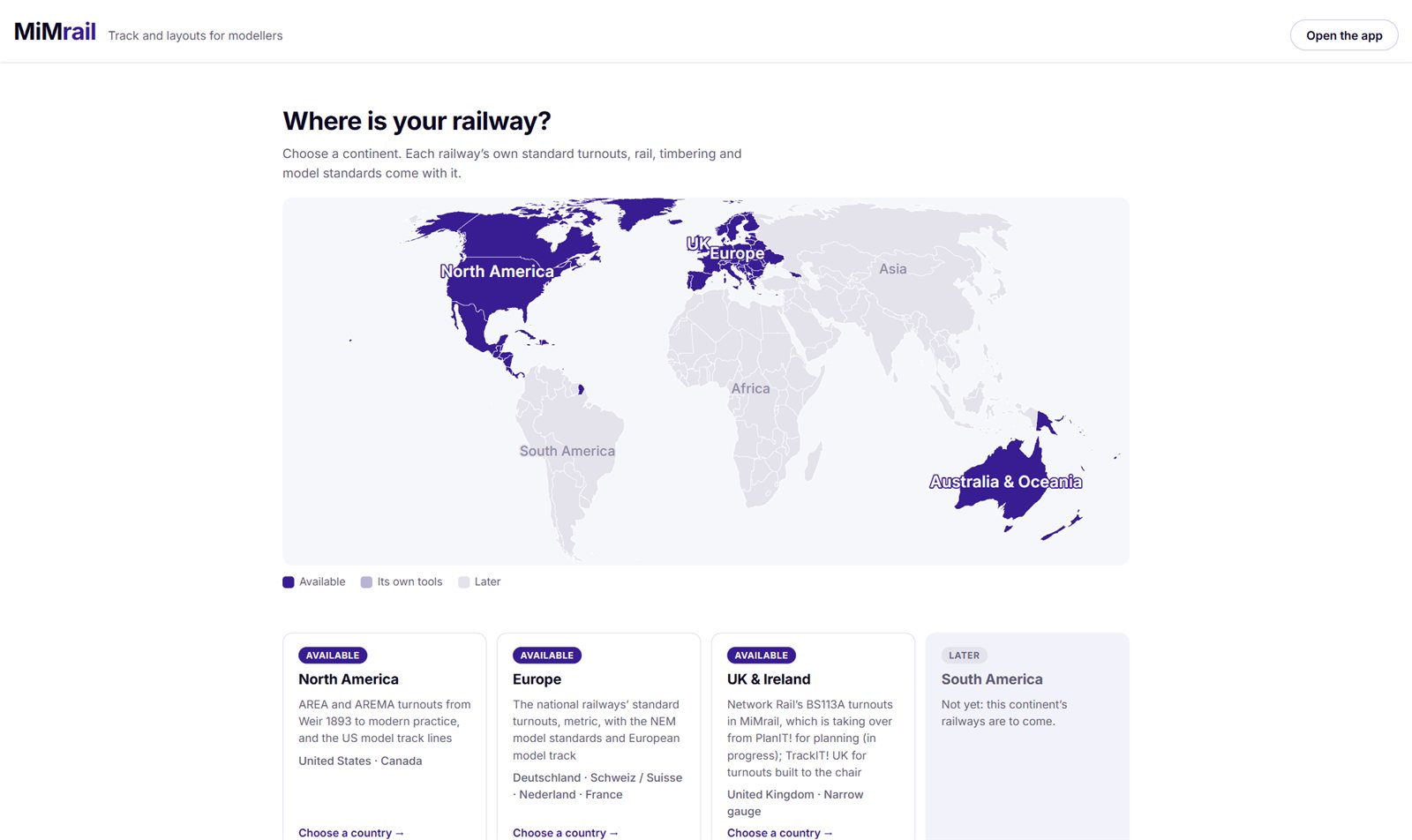
MiMrail's home page is a map of the world. Dark purple continents have railways ready to use; the rest are to come. Click a continent (or its card below the map) to see its countries, then click a country to open the app with that railway chosen. Open the app, top right, opens it with the country you used last.
On a continent's page, live countries are dark, countries being prepared are pale, and the rest are faint. Hover over a country to see its railways. Clicking one that isn't ready yet tells you which are.
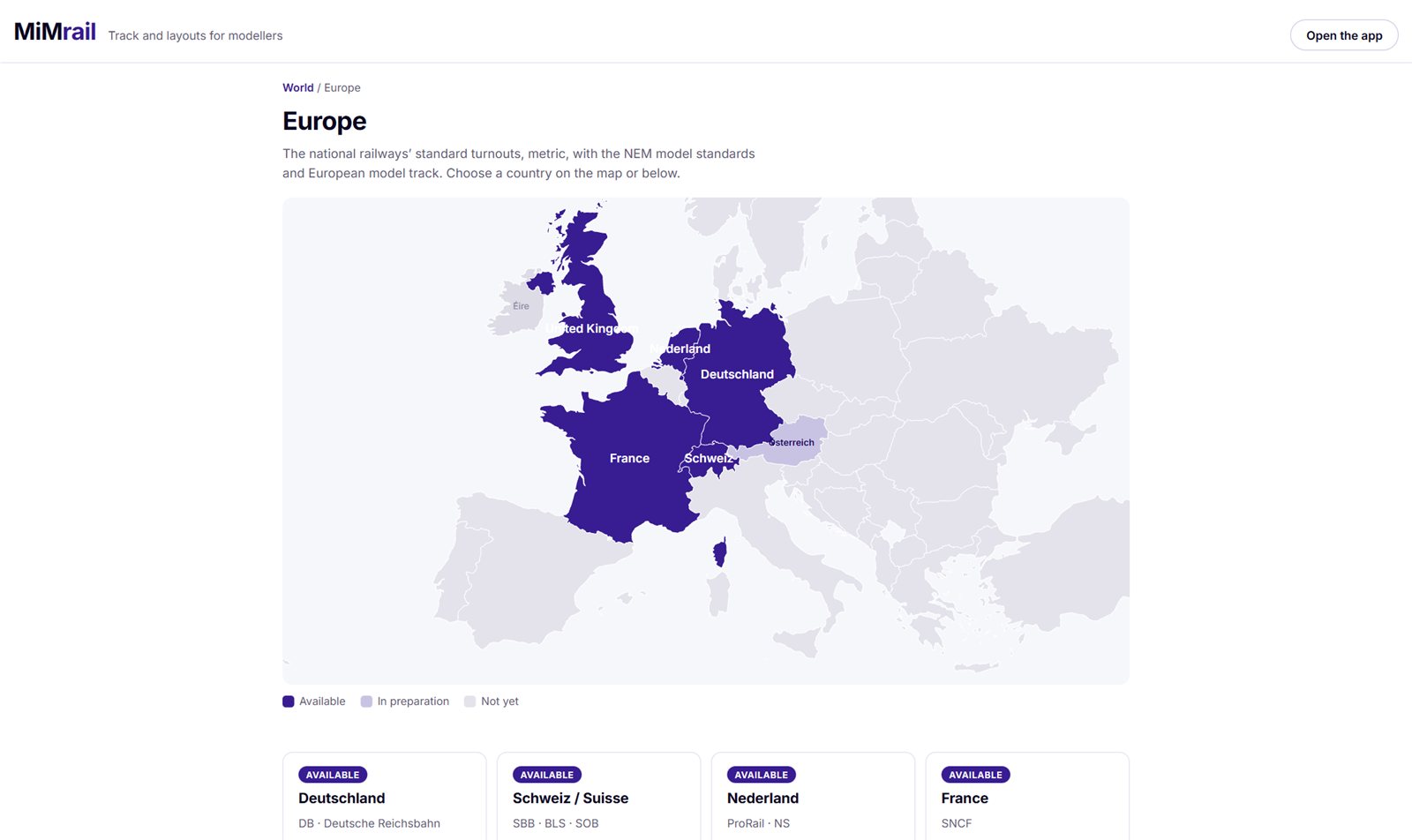
The UK & Ireland page offers MiMrail for Great Britain alongside PlanIT! and TrackIT! UK. Ireland's track goes with the UK tools for now. Australia has two railways, one per gauge: NSW (standard gauge, 1435 mm) and Victoria (broad gauge, 1600 mm). Click Australia on the map to choose between them.
Choosing in the app
If you open the app without having chosen, it asks: Where is your railway? The tabs along the top are the continents; click a country on the map or its button below. Until you choose, the box stays open.
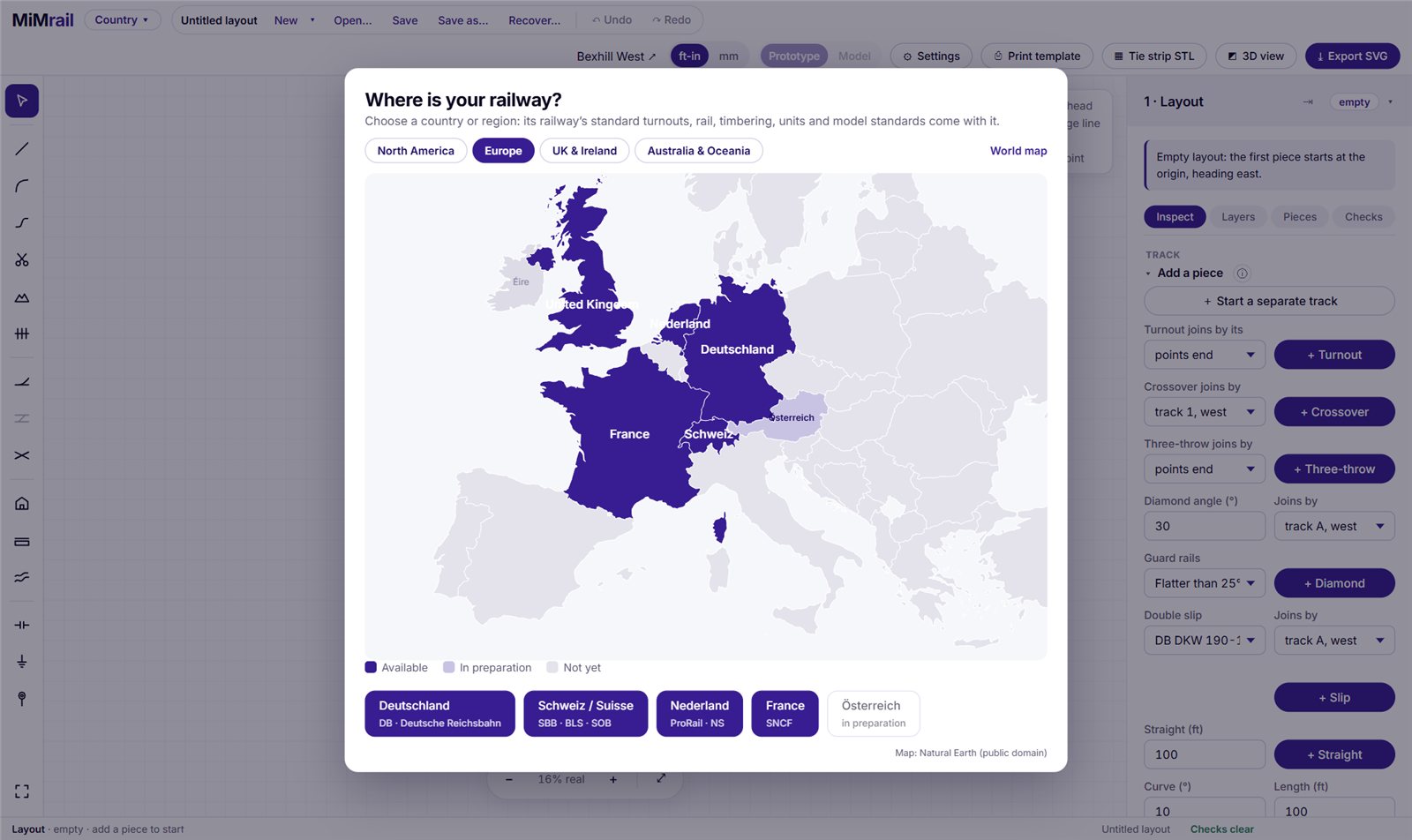
MiMrail remembers your choice in this browser. To share a link that opens a particular railway, add it to the address: app.html?country=DE. The codes are US, CA, DE, CH, NL, FR, GB, XN (narrow gauge), AU-NSW and AU-VIC. Canada opens North America, because Canadian railways laid their track to AREA standards.
What choosing a country changes
| Setting | North America | Europe, Britain, Australia, narrow gauge |
|---|---|---|
| Units | Feet and inches; curves by degree | Metres and millimetres; curves by radius in metres |
| Turnouts | AREA 1946, No. 8 | The railway's own forms (DB Grundformen, SBB, ProRail, SNCF, Network Rail BS113A, ARTC, VR, DIN field railway) |
| Model standard | HO (NMRA) | H0 to NEM 110; Britain starts in OO; narrow gauge in its own standard |
| Track centres | 14 ft | DE 4.50 m · CH 3.80 · NL 4.50 · FR 3.57 · GB 3.40 · NSW 4.00 · VIC 3.556 · NG 2.50 |
| Plain track | 39 ft rails | 30 m rails (narrow gauge: 5 m panels), with the railway's sleeper length |
| Words | tie, switch tie, tie plate, frog, grade | sleeper, baseplate, check rail, gradient; bearers and crossing in Britain |
| Paper | Letter or A4, from your browser's country, unless you've chosen one | |
| Maps | USGS, NAIP, historic topos, Sanborn plans | The country's own maps and aerial photographs |
Changing country changes what you add next and how sizes are shown. Pieces already on the layout keep their own railway. A layout file also remembers its railway, standard and narrow-gauge settings.
4The screen at a glance
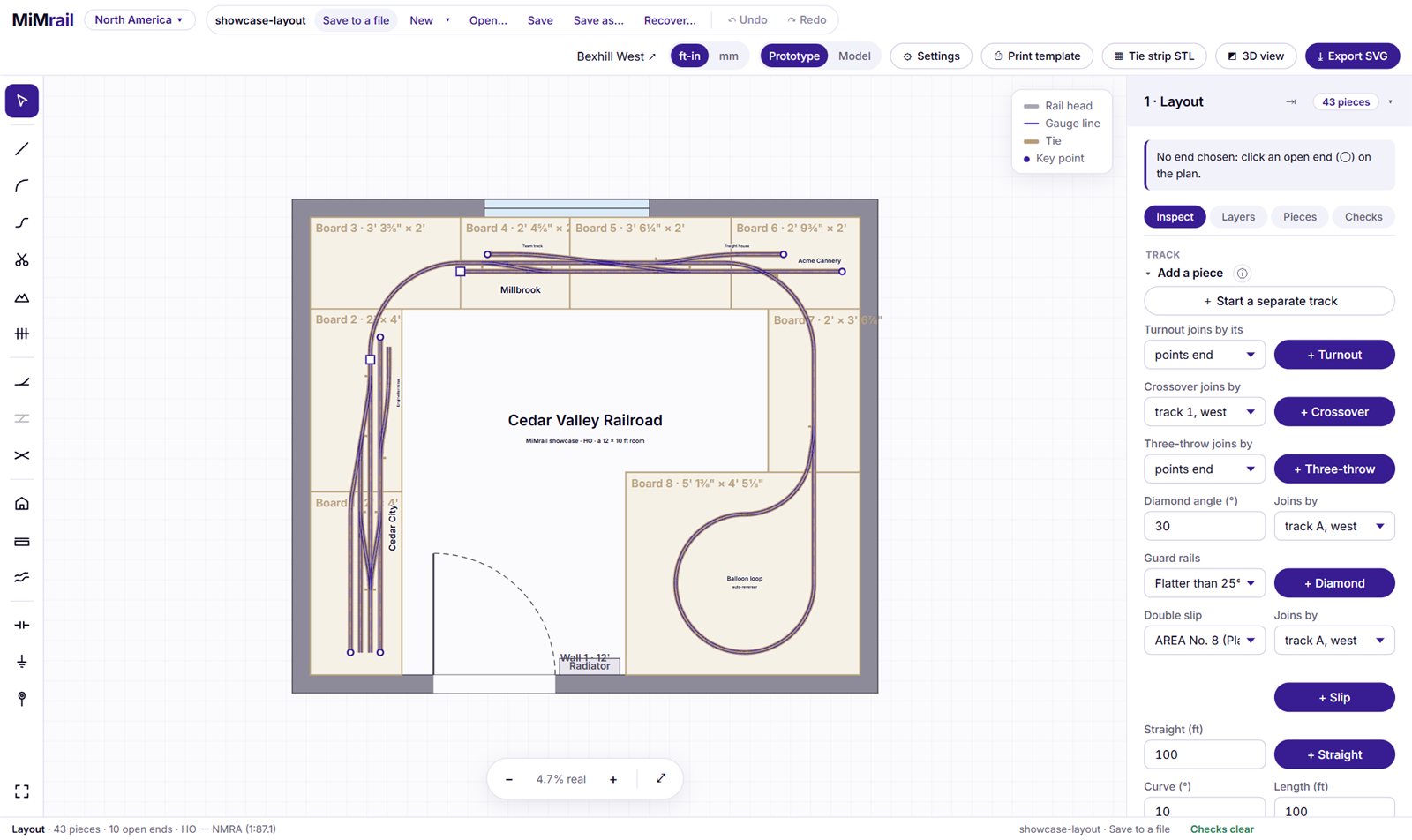
The header

- MiMrail returns to the home page. The country chip next to it opens the country picker.
- The file strip: the layout's name (with a dot • when it has changed since it was saved), the save status, New ▾, Open…, Save, Save as…, Recover…, ↶ Undo and ↷ Redo. See Files, saving and recovery.
- ft-in | mm: the units for anything at real model size, such as the room, the baseboards and model track sizes.
- Prototype | Model: whether track sizes on the layout are shown as the real railway's (feet and degrees of curve, or metres and radii) or as model lengths, radii and track centres. Whatever you've typed is converted when you switch. When the standard is Prototype (1:1) the two are the same, so the switch is greyed out.
- ⚙ Settings opens the Scale & standard and Sleepers panels in the side panel.
- ⎙ Print template, ▦ Sleeper strip STL, ◩ 3D view and ⤓ Export SVG: the ways out of the app (section 20). On a narrower screen these show as icons only; hover for their names.
The tool rail

Down the left are the tools, one icon each, in groups. Hover over one for its name and key. A tool that's out is lit; only one can be out at a time, and taking one out puts the last away.
While a tool is out, a banner across the top of the plan says which one, and what to click next, with a Done button. Esc does the same as Done. If a click can't do what you asked, a short note under the banner says why, in red, for a few seconds.
The plan
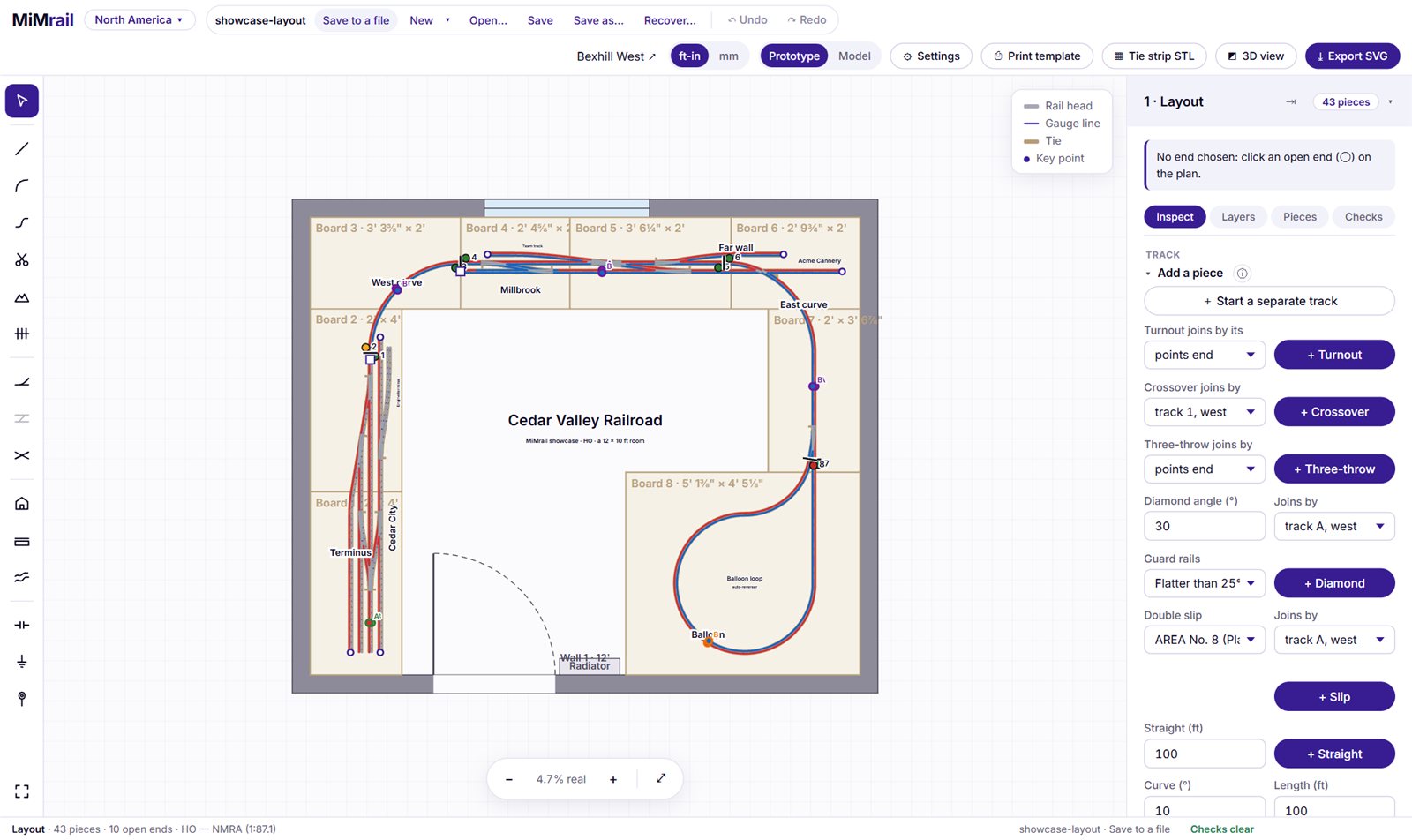
The plan is the drawing of your layout. Roll the mouse wheel to zoom in and out where the pointer is; drag an empty part of the plan to move around; the arrow keys pan too (Shift for smaller steps). The strip at the bottom has −, + and ⤢ Fit, and shows how big the drawing is against real model size: "97% real" means very nearly full size on your screen. When you're designing a single turnout it also has ◇ Zoom to frog and ⟋ Zoom to switch.
The key at the top right explains the drawing: rail head (grey), gauge line (purple), sleeper (tan) and key points (dots, labelled with the railway's own names for them). What's drawn is set on the Layers tab. Hover over a handle, a clash marker or a key point for a note on what it is.
The side panel
On the right is the Layout panel. Its heading says how many pieces the layout has. Under any message from the tool that's out, it has four tabs (Alt+1 to Alt+4):
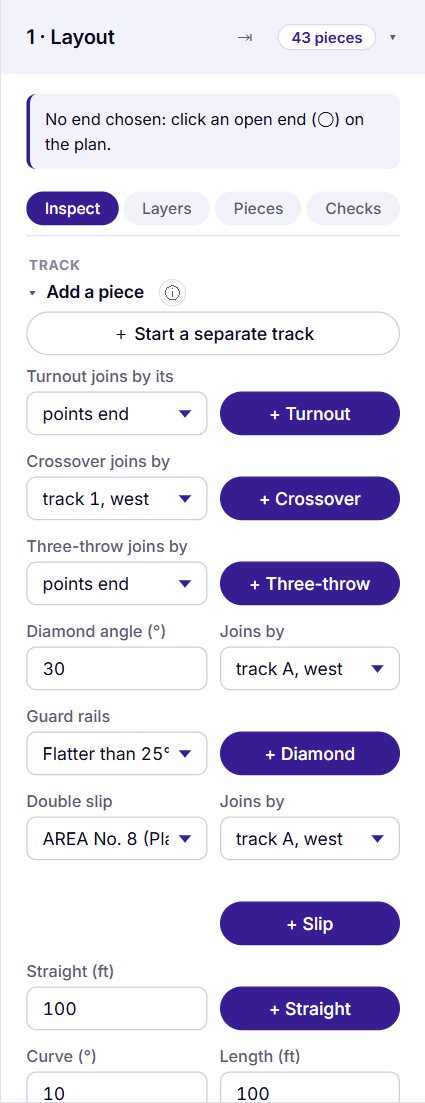
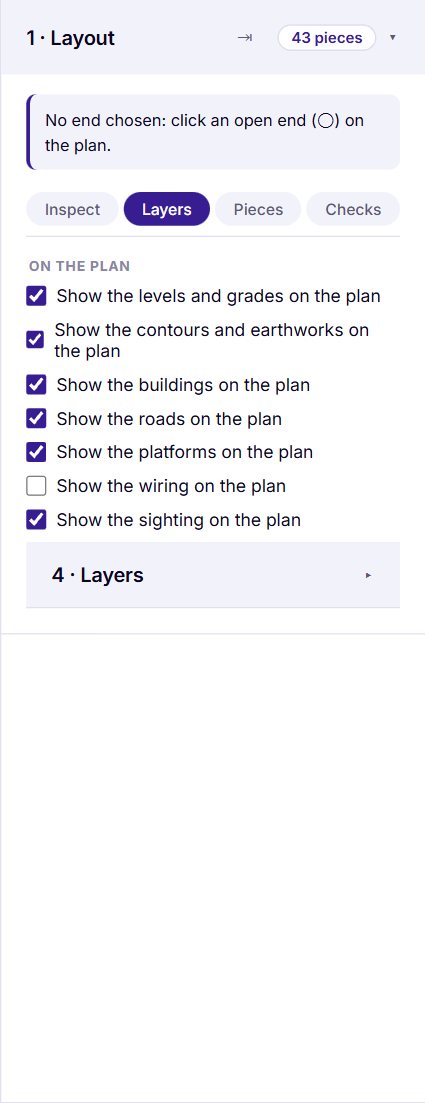
- Inspect follows what you're doing. Select a piece and it shows that piece's controls; select a board and it shows Baseboards; take out the Platform tool and it shows Platforms. With nothing chosen it shows every section, under the headings Track, Room & boards, Plan, Grades and Wiring. A bar at the top names what it's focused on, with Show everything to see the rest too, and ⇱ Float to put that section in a window over the plan.
- Layers has every Show … on the plan box (levels, contours, buildings, roads, platforms, wiring, sighting) and the drawing's own layers: baseboards, room, plan underlay, sleepers, rail heads, gauge lines, centrelines, key points, labels and dimensions.
- Pieces lists every piece by number and name, with what it's joined to. Click one to select it. A piece that can't be built is shown in red with the reason.
- Checks lists the findings; see section 12.
Click a section's heading to fold it away; folded, it sums itself up in one line ("Room · 6 walls, 1 door"). The ⓘ beside a heading explains what the section is for. The ⇥ in the panel's heading folds the whole side panel to a thin strip to give the plan more room. MiMrail remembers what you've folded.
Below the Layout panel are the settings panels: Turnout to add, Crossover, Scale & standard, Sleepers, Layers and Geometry. They're described in section 6.
The status bar

Along the foot: on the left, a summary of what's on the plan (pieces, open ends, clashes, the standard); then the layout's file and whether it's saved; then the checks (Checks clear in green, or "3 to look at" in red: click it to open the Checks tab); and on the right, where the pointer is, in prototype feet or metres.
5Files, saving and recovery
Your layout lives in a file on your own computer, a small .json file. MiMrail also keeps copies in the browser as a safety net, but the file is the thing to look after.
New, Open, Save
- New starts an empty layout. Its ▾ also offers one piece designed on its own: A turnout, A crossover or Plain track (see section 7).
- Open… (Ctrl+O) opens a layout file, a MiMrail one or a PlanIT! project.
- Save (Ctrl+S) saves to the layout's file. Save as… (Ctrl+Shift+S) saves to a new file.
If you start a new layout or open another while the current one has unsaved changes, MiMrail asks first.
Saving as you go
In Chrome and Edge, once a layout has been opened from a file or saved to one, every change is written back to that file about a second after you make it. The file strip shows how things stand:
| It says | Meaning | Click it to |
|---|---|---|
| Saved 14:32 | Everything is in the file. | – |
| Saving… | Writing now. | – |
| Save to a file | The layout isn't in a file yet: it's only in this browser. | Save as… |
| Reconnect to… | After a reload the browser needs your permission to write to the file again. | Give it |
| Open… | The page came up empty, but MiMrail remembers your file. | Open it again |
| Couldn't save | The write failed (the file was moved, say). | Try again |
| Autosave off | You've turned saving-as-you-go off. | – |
The tick box Save every change to the file automatically, in Inspect under Add a piece, turns it off and on. In Firefox and Safari a page can't write to your files, so Save downloads a fresh copy each time instead; keep the newest.
Until you've used Save as…, your layout is only in the browser's own storage, which a browser clean-up, a private window or a full disk can empty. MiMrail warns you before you close a page whose changes are nowhere else.
Undo and Redo
↶ Undo (Ctrl+Z) and ↷ Redo (Ctrl+Y or Ctrl+Shift+Z) go back and forward up to 200 steps. A run of small changes made together, such as typing a length or rotating a piece several times, counts as one step. Undo also brings back what was selected.
Recover
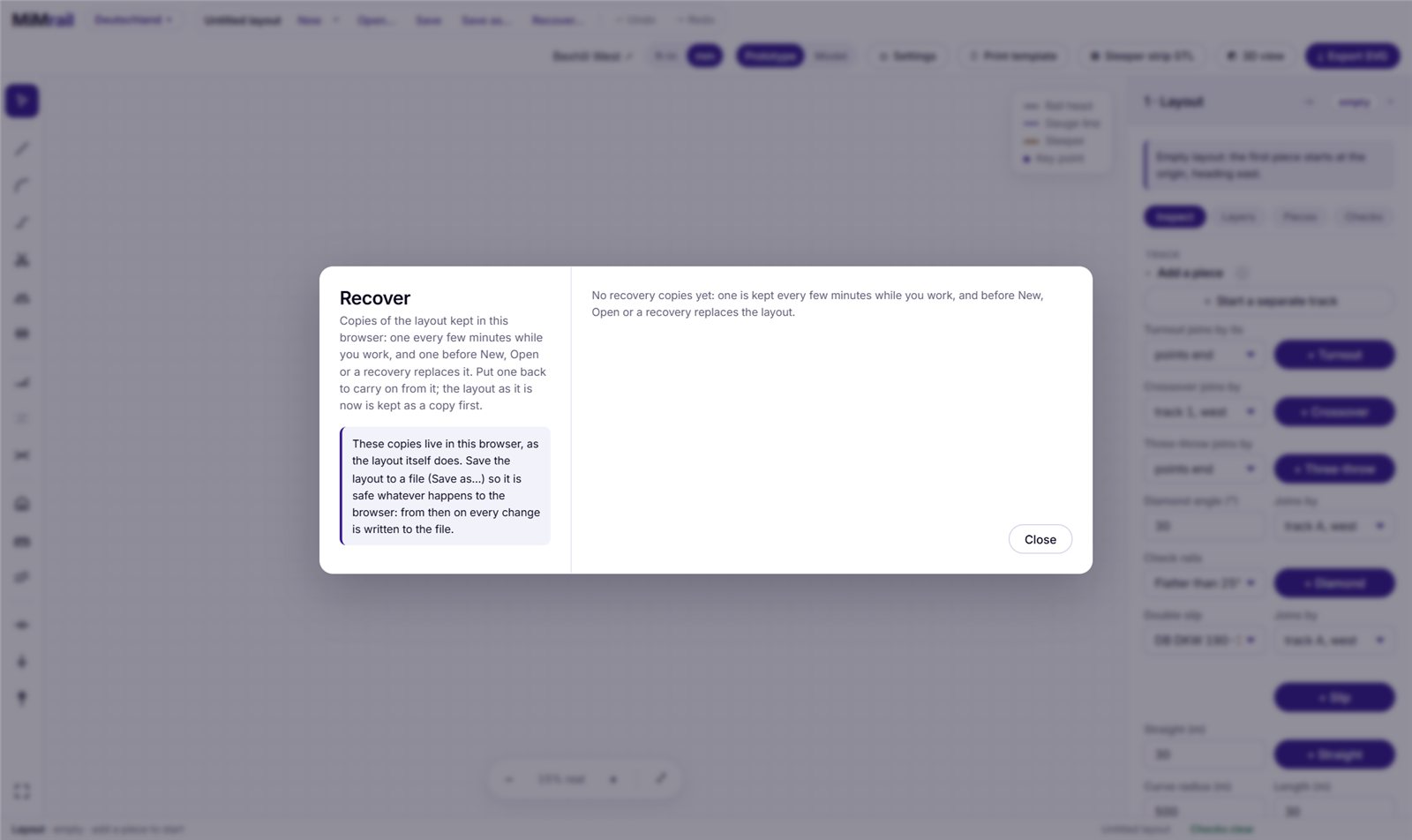
Recover… lists copies of the layout kept in this browser: one every five minutes or so while you work, and one before New, Open or a recovery replaces what you had. Up to 15 are kept. Choose one and Put back; the layout as it is now is kept as a copy first, so a recovery can itself be undone.
Opening a PlanIT! project
Open a PlanIT! .planit.json file with Open… as you would a MiMrail layout. It's converted, never written back to: it opens as "project (from PlanIT!)", unsaved, so use Save as… to keep it as a MiMrail layout.
- The track comes across as plain track (transitions as spiral stretches) and Network Rail turnouts, diamonds and slips, bent as PlanIT! bent them. The standard becomes the one PlanIT! used (P4 if it was 1:76.2 with no standard), and PlanIT!'s track centres become the minimum track centres.
- Also brought: baseboards, fascias, rings, buildings, contours, platforms, levels with vertical curves, signals, sleeper shifts, added sleepers, joint timbers, blocks, groups, scenic roads and the map's place.
- Not brought: routes and PlanIT!'s underlay, which MiMrail has no layer for yet. The note on opening lists anything else that didn't come.
Ends that PlanIT! counted as joined but which sit very slightly apart in MiMrail are listed as near misses. Drag one onto the other to join them (Joining ends). Sleepers are spaced MiMrail's own way.
6Scale, standard and settings
⚙ Settings opens two panels in the side panel: Scale & standard and Sleepers. They apply to the whole layout and to every piece you design on its own.
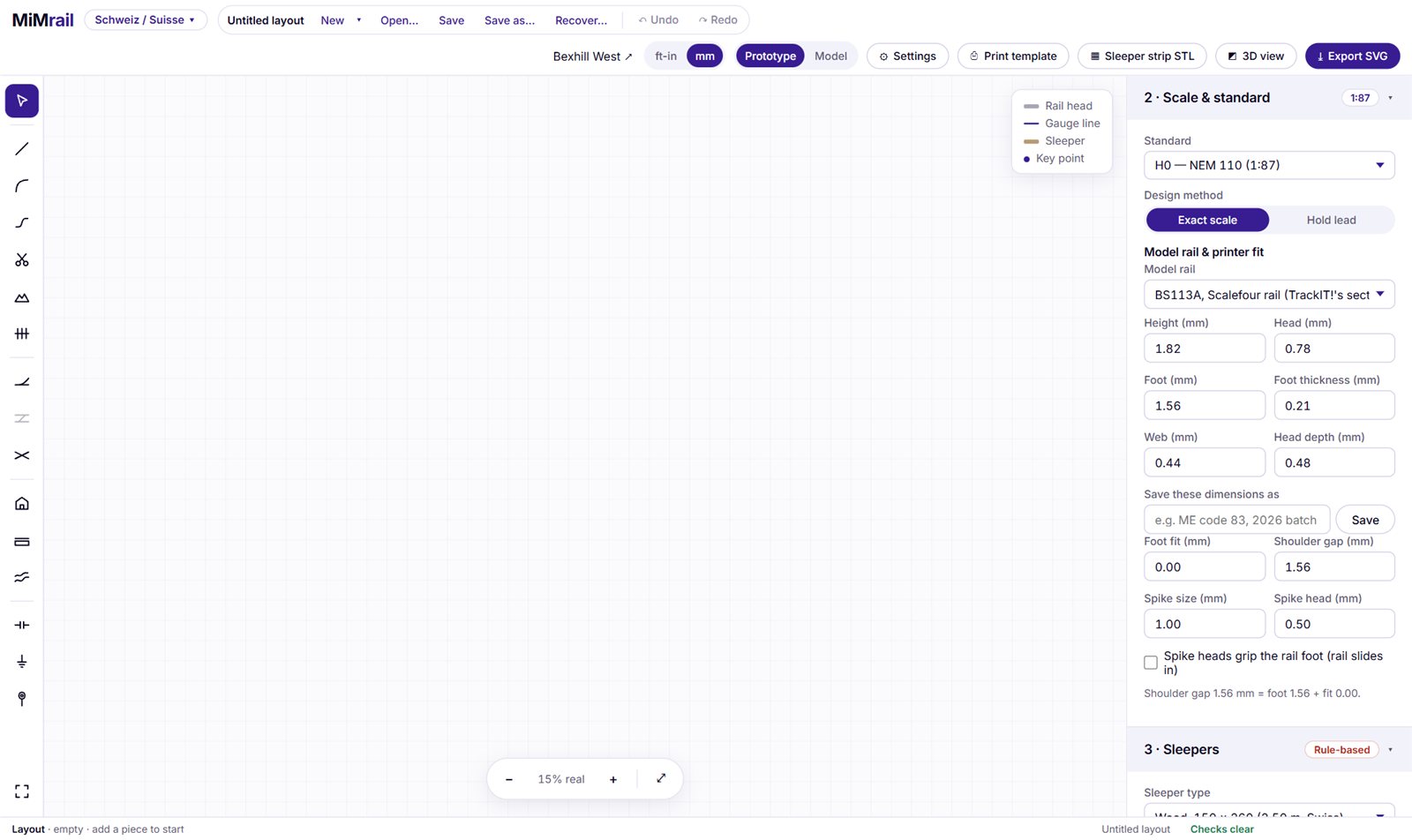
The standard
Standard is your scale and track standard: the gauge, flangeways and check gauge that the model track is drawn to. The list depends on your railway:
- North America: HO, N, S and O to NMRA, and Proto:87, Proto:64 and Proto:48.
- Europe and Australia: H0, TT and N to NEM 110, the metre and narrow gauges H0m, H0e and IIm, and H0 for Märklin's three-rail system (NEM 340).
- Great Britain: P4 / Scalefour, S4, EM, EM-SF, 00-SF, OO DOGA Fine, OO commercial (the default), TT:120, British N, and 0-F, 0-MF and ScaleSeven.
- Narrow gauge: worked out from your scale, gauge and wheel standard (section 21).
- Prototype (1:1) is always offered, for drawing the real thing.
Design method decides how prototype turnouts are made into models:
- Exact scale: the prototype geometry scaled exactly, with the flangeways the standard sets. Leads stay true to scale. The default for fine scale and NEM standards.
- Hold lead: keep the scaled prototype lead, widen the flangeways to the standard and solve the switch angle to suit (the method of NMRA's TN-12). The default for NMRA HO, N, S and O, whose flangeways are much wider than scale.
Model rail and printer fit
These settings matter for the 3D-printed sleeper strips: they size the seats the rail slides into. They're kept for each scale separately, in this browser.
- Model rail: choose the rail you'll use. The list depends on the scale and includes Micro Engineering, Peco, Atlas, Walthers / Shinohara, Central Valley, Roco and S Helper Service rail, Scalefour's BS113A section, and "Scaled prototype rail" (the railway's own section at your scale).
- Height, Head, Foot, Foot thickness, Web, Head depth (mm): the rail's sizes. Figures shown in italics are estimates; measure your own rail and type them in. Model rail varies from maker to maker, and from batch to batch.
- Save these dimensions as: give your measured rail a name (say "ME code 83, 2026 batch") and press Save. It then appears in the list with a ★.
- Foot fit is added to the foot's width to make the gap between the rail shoulders: more for a looser fit, negative if your printer prints tight. Shoulder gap is the result; typing a gap sets the fit for you.
- Spike size and Spike head: the printed spike's square post, and its head's thickness (at least 0.3 mm, to print).
- Spike heads grip the rail foot (rail slides in): the spike heads reach over the edge of the foot, so the rail slides in from the end of the strip and is held down. Set the clearance under the head and the overlap over the foot.
Don't guess the fit: the STL dialog makes small test pieces (coupons) with seats stepped a twentieth of a millimetre apart. Print one, try your rail in each, and set the fit from whichever grips best. See Coupons.
The Sleepers panel
Headed 3 · Ties, Sleepers or Sleepers & bearers depending on your railway, this sets how the timbering is laid out. The badge says Rule-based: turnout timbering follows the railway's published rules, not a copied drawing.
- Sleeper type (SBB, ProRail, narrow gauge): wood, concrete monoblock and so on. Choosing one sets the plain-line sleeper length and width.
- Spacing: centre to centre, prototype.
- Length step: turnout timbers come in steps of this (DB 100 mm, AREA 6 or 12 in).
- Longest switch tie: no timber is longer than this; beyond it, each track gets its own.
- Sleeper width.
- Bill of switch ties: the timbers a turnout needs, by length, with the total. Where a railway printed its own bill (AREA 1915, Weir 1893) the two are compared.
Narrow gauge adds Laid by eye and Fastening; see section 21.
The Layers and Geometry panels
4 · Layers switches parts of the drawing on and off: centre studs (Märklin), dimensions, baseboards, room, plan underlay, sleepers, rail heads, gauge lines, route centrelines, key points and labels. In the Layout, these sit on the Layers tab.
5 · Geometry lists every figure of the turnout or track you're designing: lead, angles, radii, switch and crossing figures, model sizes in mm, the rail list. Each figure carries a badge saying where it came from:
| Badge | Meaning |
|---|---|
| PRINTED | Printed on the railway's own drawing or table. |
| CALC | Calculated from printed figures by the railway's own equations. |
| DERIVED | Solved so that the printed figures are met. |
| ASSUMED | Not printed anywhere: borrowed from a similar design, and said so. |
| RULE | From a rule in the plan notes, not a dimensioned drawing. |
Hover over a row for the reason. Where published figures exist, a section Against published values compares them with what MiMrail drew, with a MATCH badge or the difference in per cent. The panel heading's badge (Verified, Derived, Open data, Provisional…) says how solid the source is overall.
7Designing one piece on its own
Sometimes you want just one turnout: to print its template, make its sleeper strip, or study it. New ▾ offers A turnout, A crossover and Plain track, each designed on its own.
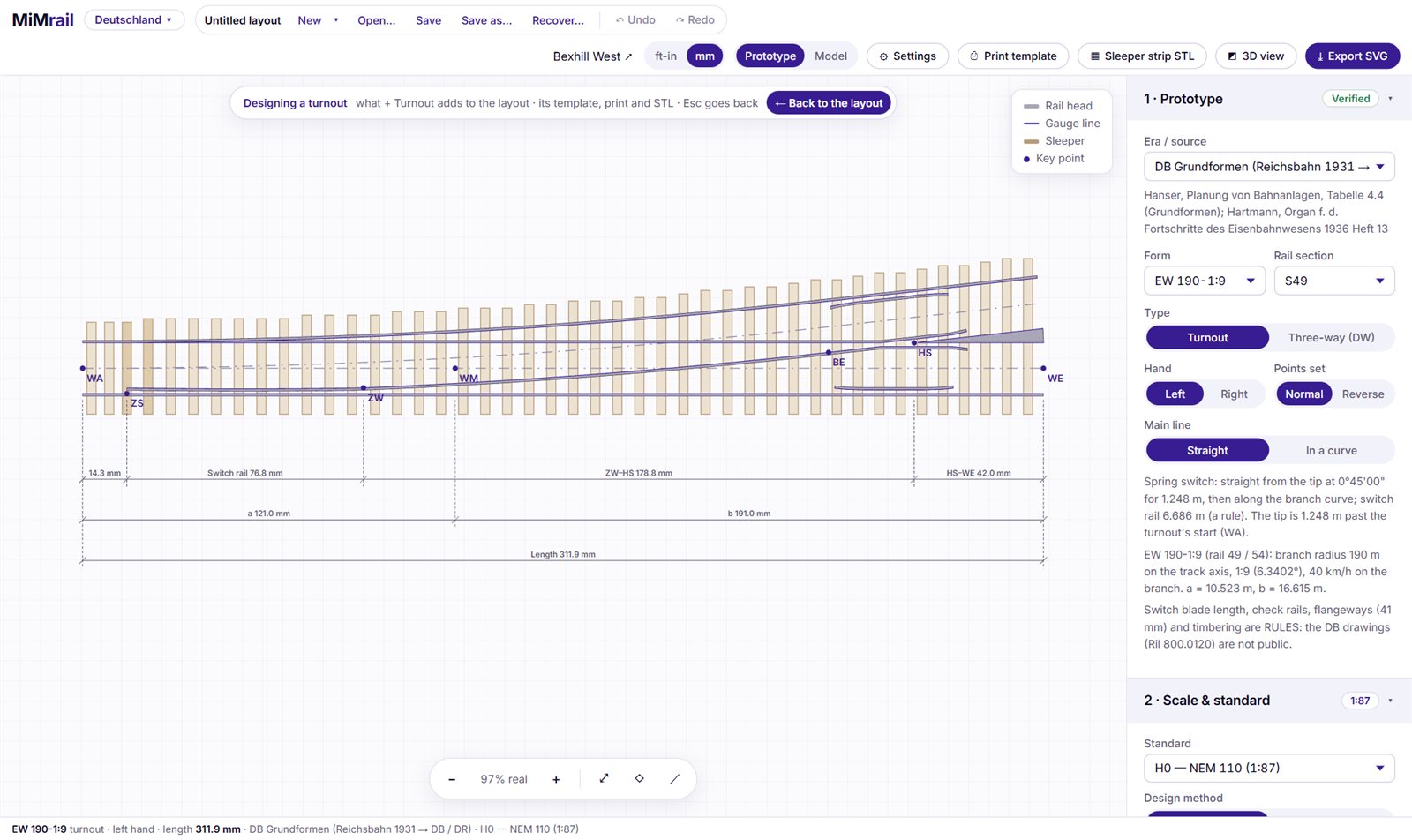
A bar over the plan says Designing a turnout. ← Back to the layout or Esc goes back, and nothing on the layout is changed. The header's print, STL, 3D and SVG buttons all act on the piece you're designing.
The turnout you design here is the one + Turnout adds to the layout, and the crossover designer sets what + Crossover adds. In the Layout, this panel is called Turnout to add.
The Prototype panel (Turnout to add)
- Era / source: whose turnouts, and from when. In North America: AREA 1946, the AREA tables from 1910 to 1945, Weir 1893, New Haven 1908, modern AREMA, some railroads' own drawings (Metrolink, BNSF, Union Pacific) and Custom. In Europe each railway's standard forms, and the model makers' ranges too. A line under it cites the source.
- Frog number, called Form for the national railways (EW 190-1:9, GW 1:9 R195, Tg 0,13…) and Turnout for a maker's range.
- Rail section: the prototype rail (S49, 54E2, 115 RE…).
- Switch: straight, curved or stub, where the source offers them; AREA 1946 also has Plan 920-41's Design A and B. Frog: rigid or spring.
- Bearers (Britain): timber, or Network Rail's NR56V concrete where a layout is drawn for the form.
- Type: turnout or three-throw (DB's Dreiwegweiche), with how far the second set of points is staggered.
- Hand: left or right. Points set: normal or reverse (left, normal or right for a three-throw), for how it's drawn.
- Main line: straight, or in a curve. Give the curve by degree, radius or model radius, and say whether the diverging route goes inside or outside it (DB's IBW and ABW).
A note under the panel describes how the switch is built and anything about the source you should know.
Custom turnouts (North America)
Choose Custom as the source and type the figures from your railroad's standard plan: switch length, switch angle (optional), point thickness, actual lead, frog toe and heel lengths, and the centreline radius if it's printed. Say whether the frog lengths are measured to the ½″ point (AREA from 1921) or the theoretical point (to 1920). MiMrail solves the rest to meet them. It starts filled in with BNSF's No. 9 as an example.
The Crossover panel
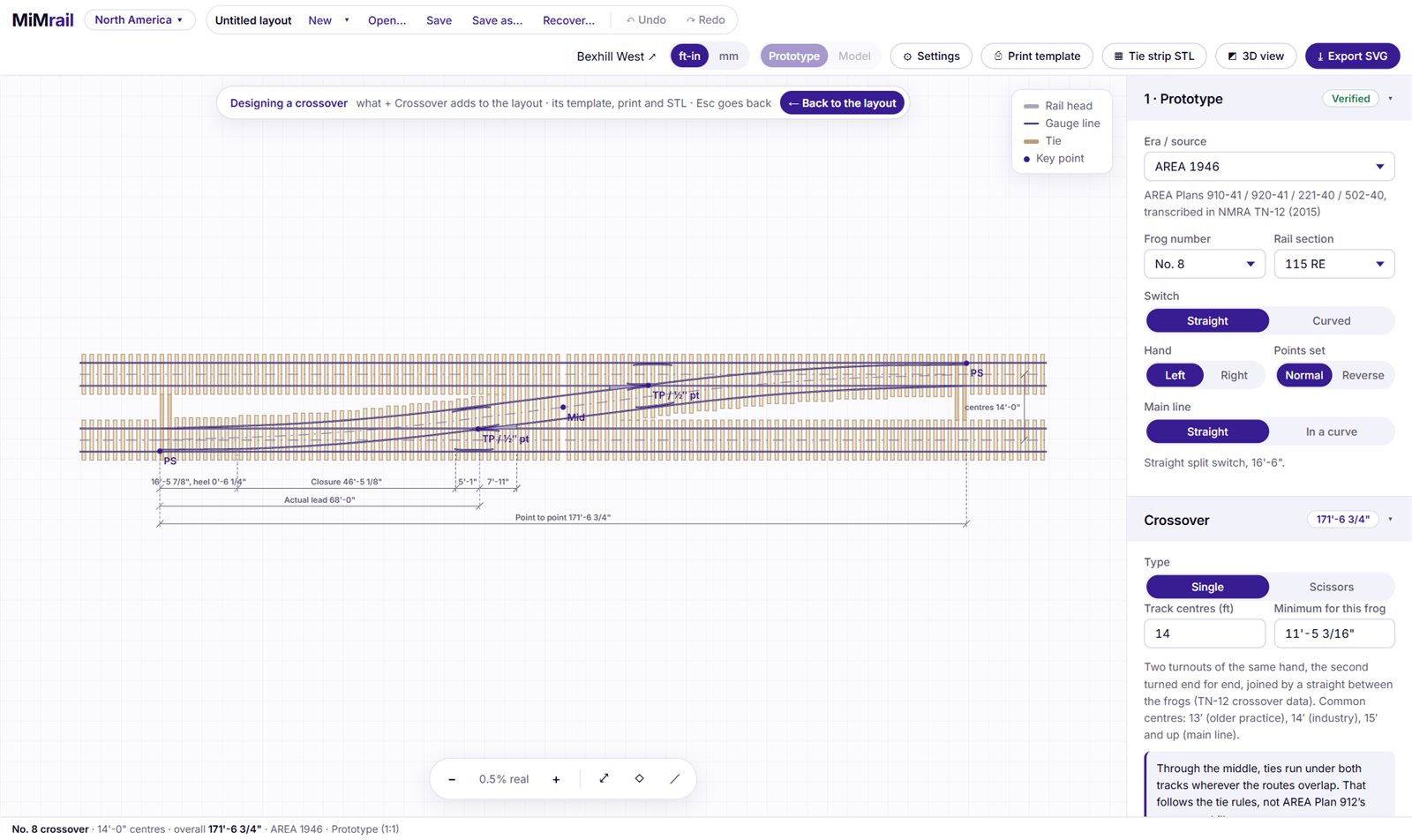
- Type: Single (two turnouts of the same hand, the second turned round, joined between the frogs) or Scissors (two crossovers of opposite hand over each other, with a diamond in the middle).
- Track centres, and beside it the minimum this turnout allows.
- DB-style crossovers can use a Second turnout of the same slope on track 2.
- SNCF's jonction croisée lets each corner be a turnout, a TO (the diagonal runs straight on across that track) or a TJD (double slip).
Through the middle, the sleepers run under both tracks wherever the routes overlap, by the railway's rules.
Plain track
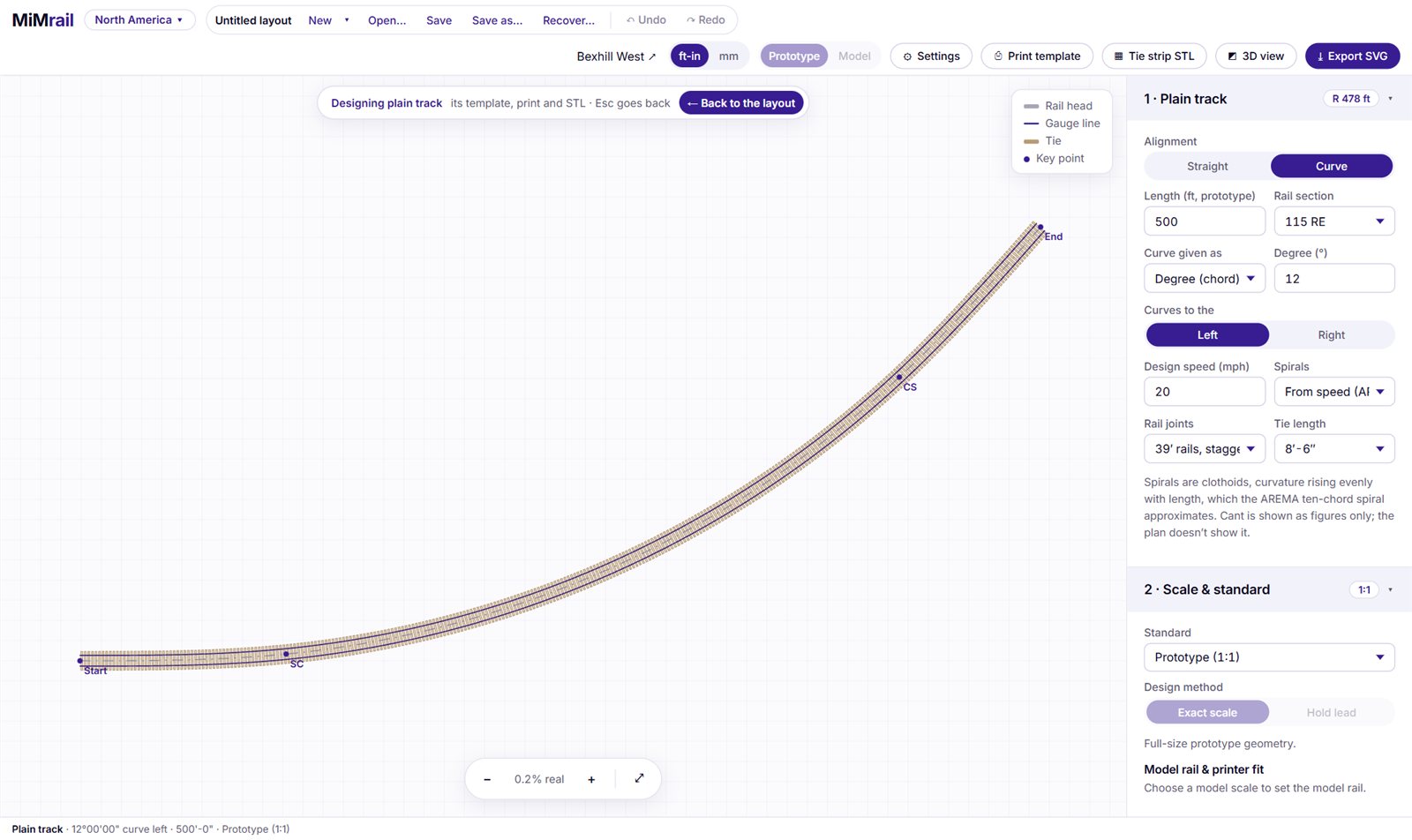
A straight or a curve on its own, with its rails, joints and sleepers, for a template or a sleeper strip of plain line.
- Alignment: straight or curve. Length (prototype) and Rail section.
- For a curve: radius (or degree, or model radius), which way it turns, and the design speed. Spirals (transitions): from the speed (AREMA's minimum), a length you set, or none. Spirals are true clothoids.
- Rail joints: 39 or 33 ft rails, staggered or square; 15, 30 or 60 m rails; 5 or 2.5 m narrow-gauge panels; or welded.
- Tie length: the railway's plain-line sleeper.
The Geometry panel gives the curve's figures and, for North America, the cant: equilibrium and suggested cant, unbalance against the 3 inch limit, and the speed it allows. Cant is shown as figures; the plan doesn't draw it. Radii under 50 ft (15 m) are refused as street-railway territory.
8Laying track
There are two ways to lay track and you can mix them freely: draw it with clicks on the plan, or add pieces of set sizes with the buttons in Add a piece.
Open ends
Every piece's unjoined end has a small circle, an open end ◯. New track is joined on at open ends. Click one to choose it; the side panel then says which end is chosen ("Next piece joins piece 4 at its diverging end"), and the next piece added joins there.
Drawing track
Press S for straight track or A for a curve (or use the rail).
- Start. Click an open end to carry on from it, or click anywhere on an empty part of the plan to start a separate track. (If you start on a free spot, your second click sets which way it heads.)
- Lay. Each click lays track ending where you clicked. A dashed preview follows the pointer, with its angle, length and radius.
- Join. Click another open end and MiMrail lays the curves that meet it the right way round (an S-curve if need be). The end is ringed green before you click.
- Finish. Esc, Enter, a right-click or a double-click ends the run; the tool stays out for the next. Esc again puts it away.
How each click is laid is set by the buttons in the side panel while the tool is out:
- Curve to click (the A tool): a curve leaving the end smoothly and finishing at the click. Hold Shift for a straight on.
- Straight (the S tool): straight on to abreast of the click. If the click is off to one side, a short curve of the radius set first turns the track onto it.
- Radius, then straight: a curve of the radius set, then straight to the click.
- Straight, then radius: a straight, then a curve of the radius set ending at the click.
Snap direction (on by default) makes the end of each piece snap to 15° steps, square to the room, or to run along a nearby track. Hold Alt to draw freely. While drawing you can still pan: drag, use the arrow keys, or move the pointer to the edge of the plan and it scrolls.
A curve tighter than the minimum radius you've set is shown in red in its label as you draw it, and listed under Checks once laid. Nothing under 50 ft (15 m) prototype radius can be drawn. Each piece is its own Undo step.
Clicking on existing track when no run is going selects that piece instead, so you can draw and select without changing tools.
Laying turnouts, slips and diamonds by drawing
Press T to lay a turnout of the design in Turnout to add. Press T again to step through its family: turnout, three-throw, double slip, single slip (where the railway has them). The buttons Track, Turnout, Three-throw, Double slip, Single slip and Diamond choose them directly, with a frog-number list beside them. A kind your railway hasn't got is greyed out (single slips are DB's, SBB's and SNCF's), and its tooltip says why.
- Into existing track: click a straight or a curve where the points should go, move the pointer to aim it (which way it faces, which side it leaves to), and click again. On a curve the turnout is bent to suit, diverging inside or outside.
- At an open end: click the end, then click on the side the turnout should lean. Point along the branch to carry on drawing from the diverging end, or ahead to carry on from the straight end.
Afterwards the tool goes back to drawing track, carrying on from that end.
Press C for a diamond, then point at a place where two plain tracks cross: MiMrail shows the diamond at their angle and length, and a click sets it in, splitting both tracks through it. If there isn't room either side, it says how much longer a track needs to be.
Adding pieces with the buttons
In Add a piece (Inspect tab), each button adds one piece at the chosen open end. On an empty layout the first piece starts at the origin, heading east. After each one, the chosen end moves on to the new piece, so pressing again carries on.
| Button | Settings beside it |
|---|---|
| + Turnout | Joins by its points end, straight end or diverging end. The design is Turnout to add. |
| + Crossover | Joins by track 1 or 2, west or east end. Single or scissors, from the Crossover panel. |
| + Three-throw | Joins by its points, straight, left or right diverging end. |
| + Diamond | The angle (down to 1 in 6 or 1 in 9, depending on the railway), which end it joins by, and check / guard rails: flatter than 25°, always or never. In Britain, the nearest Network Rail diamond. |
| + Slip | DB DKW / EKW 190-1:9, SNCF TJD / TJS tg 0,13 and 0,11, SBB DKW / EKW 185-1:9, ProRail's Engels wissel, or AREA No. 8 or 10. |
| + Straight | Its length. |
| + Curve | Its angle or radius, its length, left or right. |
+ Start a separate track makes the next piece start a new track below the layout; drag its start handle to where it belongs. With SNCF chosen there's also + Jonction croisée, on 3.570 m or 4.380 m centres, each corner a turnout, TO or TJD.
Joining ends
Drag an open end onto another and they're joined: press on the ◯ and pull. A dashed line follows the pointer; over another open end the join is previewed and the target ringed green (or red if it can't be made).
- Ends on different tracks: the track you dragged from moves and turns to meet the other. The message says how far it moved and turned.
- Ends on the same track: the plain track leading to the end you dragged is bent to close the loop.
With an end chosen, the side panel's Join this end to another end… does the same with two clicks.
Link: easement curves between two ends
Press K, click one open end and then another. MiMrail joins them with a run of easement curves (curvature-continuous, like real transitions), or an eased S-bend if the ends are offset. The message gives its length and sharpest radius. Esc lets go of the first end; K or a right-click puts the tool away.
Split and trim
Press Shift+S. Split cuts a straight or a curve in two where you click; nothing moves. Trim takes a piece back to the click from its open end, the part to go shown in red. T switches between them. Cuts fall on the nearest tenth of a foot and must be at least a foot from either end.
9Editing what you've laid
Selecting a piece
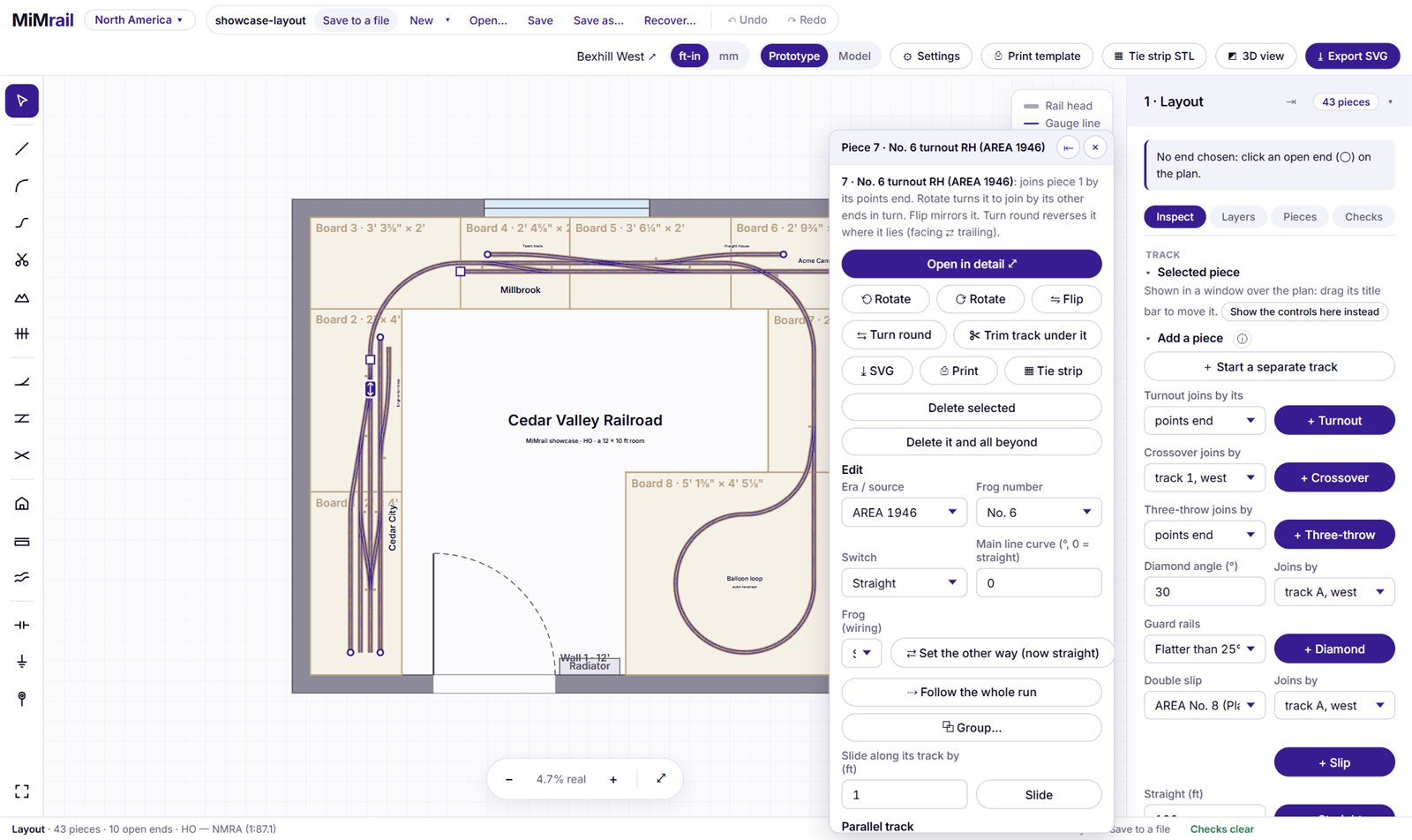
Click a piece on the plan, or in the Pieces list. Its controls open in a window over the plan, titled with its number and name. Drag the window by its title bar; it remembers where you put it. × closes the window and keeps the piece selected, with its controls in the side panel; ⇤ keeps them in the side panel from then on (Show in a window brings the window back). Esc deselects.
Moving and turning
- ⟳ Rotate (R) and ⟲ Rotate (Shift+R): a track's first piece turns the whole track about its start, by the step in Turn the first piece by (15° to start with). Any other piece turns so that it joins by its next end instead.
- ⇋ Flip (F): mirror it, left hand to right.
- ⇆ Turn round (E), turnouts only: its points face the other way (facing to trailing), still diverging to the same side.
- The start handle, a white square with arrows at the start of each track: drag it to move the whole track. Bring any of its open ends near another track's open end and it snaps on and joins. A track's first piece also has Heading now and Start X / Y boxes for exact placing.
- The far-end handle, a dot at the far end of a selected straight or curve: drag it to reshape the piece, the way the draw tool lays one (Shift keeps it straight). Whatever hangs off that end moves with it; if nothing does, drop it on an open end to join there.
- The slide handle ↔, at the middle of a selected piece set into a track: drag it to slide the piece along the track, straight or round a curve. The track either side lengthens and shortens to suit, and nothing else moves. Slide along its track by moves it an exact distance (+ the way it's laid, − back).
Changing a piece
Under Edit, change the piece itself: a plain piece's length and curve; a turnout's railway, form or frog number, switch, frog and main-line curve; a crossover's track centres; a slip's type; a diamond's angle and guard rails. What's joined to it stays joined. If a change won't build, it isn't made and the reason is shown.
Opening a piece in detail
Open in detail ⤢, or a double-click, opens a turnout, three-throw, crossover or scissors in its full designer: every dimension, the sleeper bill, the checks, and its own print and STL. A bar says Detail of piece 7. Anything you change there changes the piece on the layout; ← Back to the layout or Esc returns, and the whole visit is one Undo step.
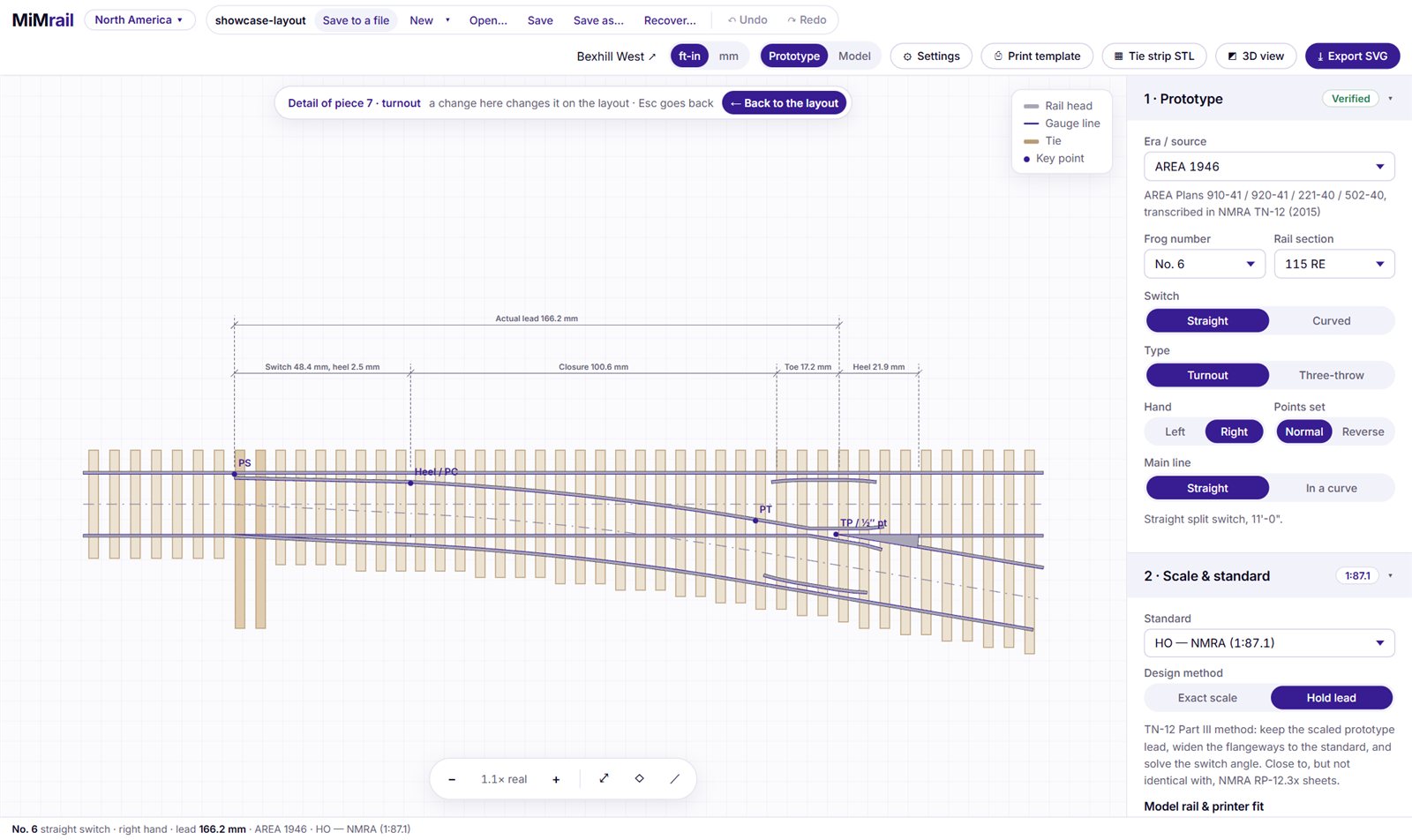
Scale, sleepers and model rail belong to the whole layout, so changing them in a detail changes them for every piece. A turnout can't become a three-throw in its detail (their ends differ, and what's joined to them would come away), but a crossover can become a scissors. Slips, diamonds and plain track have no detail screen. Network Rail turnouts come from data rather than a construction, so they don't either: their full detail is in TrackIT!.
Exporting one piece
⤓ SVG, ⎙ Print and ▦ Sleeper strip in a piece's window export that piece alone. A piece's sleepers that belong to a block are left out of its strip; they print with the block.
Deleting
- Delete selected (Delete or Backspace): the piece alone. What hung on it becomes a separate track, left where it was.
- Delete it and all beyond (Shift+Delete): the piece and everything joined on beyond it.
- Remove last: the piece added last.
Delete also deletes a selected board, label, door, window or obstacle.
Lines, runs and groups
- Join into one line. Select a plain piece, then Shift-click another on the same track. The run between them is lit; give it a name if you like ("Down Main") and press ⟿ Join into one line. It becomes one piece with no joints of its own. Its stretches are still edited one by one in its window, and ✂ Break into pieces undoes it. A line stops at a turnout.
- ⟿ Weld the whole run joins all the plain track through the selected piece, both ways to a turnout or an open end, into one line.
- ⇢ Follow the whole run lights the run through the selected piece, carrying on through turnouts by their straight road, and gives its length.
- ⧉ Group… makes pieces that move together: click pieces to add or take them out, then Make group or Enter. Dragging the start of any track in the group moves them all. Ungroup parts them.
10Crossovers, sidings and yards
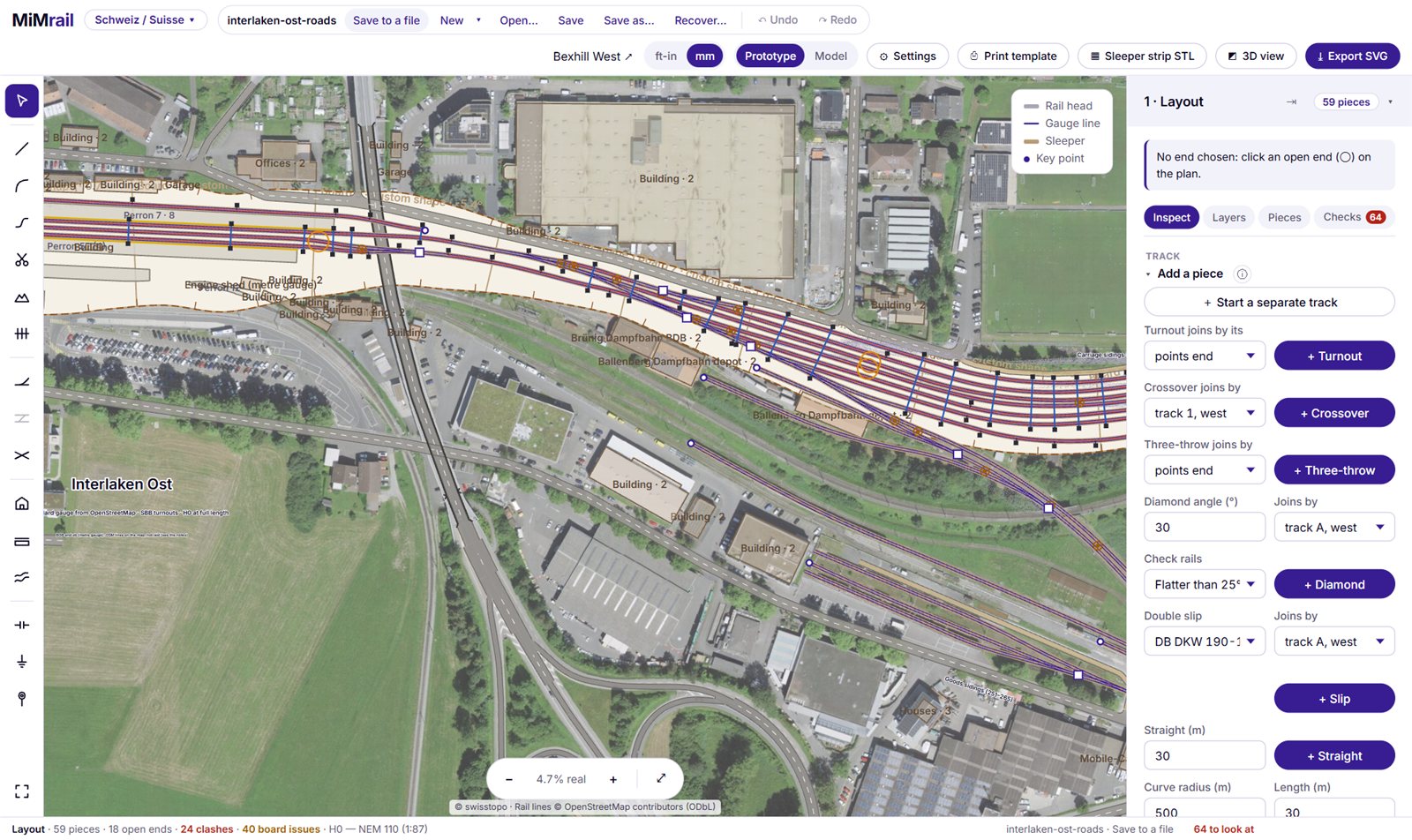
With a piece selected, the Parallel track part of its window builds whole formations in one go, at the railway's track centres.
- ‖ Lay a parallel track: a track alongside at the Track centres set, along the whole line or just this piece. Both sides are previewed; click the side you want.
- ⇄ Make a crossover (X), with a turnout selected: a crossover to the track alongside, on the turnout's diverging side.
- ✕ Make a scissors: a scissors crossover to the track alongside.
- ⋈ Make a slip crossover: a double slip in the turnout's place, its crossing route leading to a turnout on the track alongside.
- ⋔ Make a three-throw crossover: a three-throw whose two diverging routes lead to turnouts on the tracks either side.
- ⇤ Make a siding: off the turnout's diverging end, a curve back until it runs alongside, then the Siding length set (empty: as long as the turnout). Set a Curve-back radius for a straight at the turnout angle and then that curve; leave it empty and MiMrail chooses. A siding remembers how it was made, so you can change its track centres later and it's laid again.
- ☰ Make a yard ladder (Shift+L): from the selected turnout, a straight ladder of the same turnouts, one per track, for the number of Tracks set. Every track ends on one line square to the main line, the outermost the Shortest track long.
11Sleepers, joint timbers and blocks
MiMrail lays every sleeper by the railway's rules. Where two pieces' sleepers collide, as they do where a turnout meets a crossover or two tracks run very close, you can shift them by hand.
Shifting sleepers
Press H (⇹ Shift ties). Sleepers that overlap another piece's are drawn red: the job is done when the red has gone. Click a sleeper to choose it, then:
| To | Do |
|---|---|
| Slide it along the track | Drag it; or ← → (1 in steps, Shift for ¼ in) |
| Twist it | Shift+drag; or R / E (1°, Shift for 0.1°) |
| Move it across the track | Ctrl+drag; or ↑ ↓ |
| Lengthen or shorten it | Drag an end's dot; or ] and [ for both ends (1 in, Shift for 6 in); or type a length |
| Leave it out | Delete (again to put it back) |
| Add one | Click the track between sleepers |
| Make a joint timber | J: one long timber spanning to the nearest other track |
| Space a run of them evenly | ⚓ Anchor one, choose another on the same track, then Equalise or Fan |
| Start again | Reset this tie or Clear this piece's |
Esc lets go of the sleeper, then puts the tool away.
Blocks
Where two tracks run so close that their sleepers interleave, a block makes that stretch's sleepers into one raft: drawn violet, listed as one part, and 3D-printed as one part, each track's sleepers still webbed along its own rails. In Shift ties, choose a sleeper where the tracks run close and press Make a block (B). The Blocks section lists them, each with a name, its sleepers and joint timbers, and ⬢ 3D print… for its strip.
12Checks
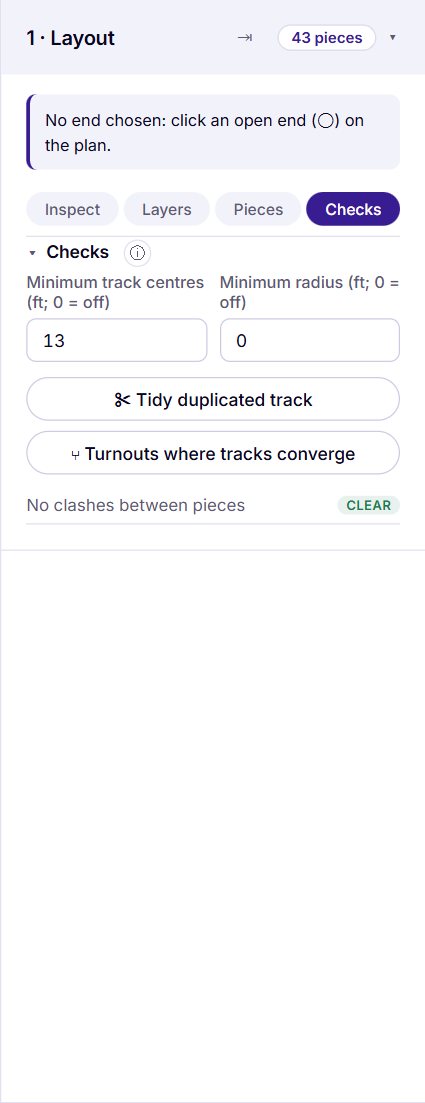
MiMrail keeps checking the layout as you work. The status bar says Checks clear or how many things there are to look at, and the Checks tab lists them. Click a finding to zoom to it and select the piece.
The settings
- Minimum track centres: tracks running side by side closer than this are flagged TIGHT (0 turns it off). Diverging legs near a turnout aren't parallel, so they're left alone.
- Minimum radius: plain-track curves tighter than this are flagged TIGHT CURVE (0, the default, turns it off).
What it finds
| Finding | What it means, and what to do |
|---|---|
| OVERLAP | The rails of two pieces touch or cross. If they're meant to cross, put in a diamond: plain pieces get an ◇ Insert diamond button. |
| TIGHT | Tracks side by side closer than the minimum centres. |
| TIGHT CURVE | A curve under the minimum radius. |
| ON JOINT / NEAR JOINT | A turnout or crossing over a baseboard joint, or within the clearance set in Baseboards. |
| OFF BOARD | Track beyond the edge of the baseboards. |
| WALL · DOOR · OBSTACLE · AISLE | A board through a wall, in a door's swing or over an obstacle, or an aisle narrower than you set. |
| DOESN'T CLOSE | Levels that disagree round a loop (section 16). |
| SHORT · REVERSING · NO FEEDER… | Wiring findings (section 18). |
On the plan, overlaps are ringed in red dashes, tight spots in amber and tight curves in red dots. Ends that very nearly meet but aren't joined are listed as near misses.
Tidying traced track
Two buttons help when track has been traced from a map or brought in from PlanIT!, where it's easy to have track laid over track:
- ✂ Tidy duplicated track settles every overlap of track laid on track: the plain track under each turnout, diamond or slip is cut away, and of two plain tracks laid one over the other the earlier is kept. Tracks that genuinely cross are left (they want a diamond). It works through them one at a time and can be stopped; Undo takes it all back.
- ⑂ Turnouts where tracks converge: wherever two plain tracks run into one another at a turnout's angle (a traced branch meeting a line), it puts in the turnout of the chosen railway whose angle matches, set into the through track with the branch trimmed and joined. A single plain piece's window has the same as ⑂ Turnout where it meets a track, and ✂ Trim track under it keeps the selected piece and cuts away plain track lying under it.
13Room and baseboards
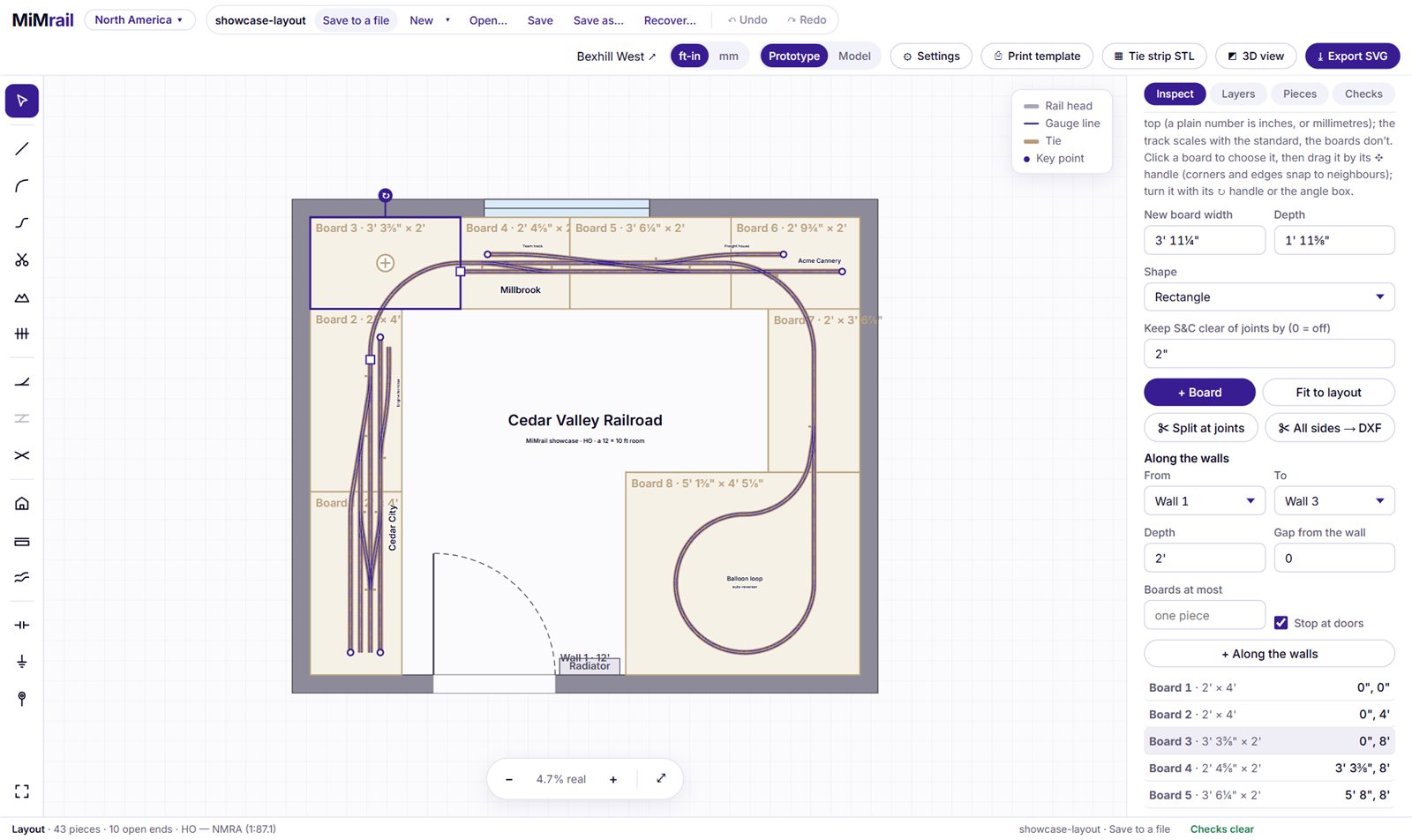
Draw the room the layout goes in, lay the baseboards in it, and MiMrail checks the track against both. These need a model scale: in Prototype (1:1) there's nothing to fit.
Sizes here are real model sizes, in the header's units: type 24' 6", 24.5 ft or 7470 mm. A plain number is feet (inches for boards), or millimetres when the header says mm. The track scales with the standard; the room and boards don't.
The room
In Room, choose a Shape (rectangle, L-shape, or By walls…), give its size and press + Room. Move it by its ✥ handle.
By walls describes any room by walking round it: each wall's length, then which way you turn at its end. R or L is a square corner; R45 or R 45° turns 45°. For example 24' R 16' R 10' L 4' R 14'. Choose which way the first wall runs, and leave the last wall off: MiMrail closes the room for you. Once there's a room, its walls box can be edited the same way; corner 1 and wall 1 stay put.
- Wall thickness, Angle, and a Room grid at the spacing you choose, square to the room.
- Narrowest aisle: gaps between boards, walls and obstacles narrower than this (but wider than a foot, a gap behind a board) are listed under Checks. 2 ft to start with.
- Doors, windows and doorways: click a wall on the plan (or choose it in On wall), then + Door, + Window or + Doorway. Set each one's width and distance from the corner; doors can be single or double and swing in or out (their swing is drawn and kept clear of the boards); windows have a sill height. Drag them along their wall.
- Obstacles: stairs, a boiler or furnace, a water heater, a column, a workbench, an electrical panel or anything else, each of a usual size you can change. Drag them into place and turn them.
- Make editable turns the room into corners you can drag: add one with the + halfway along a wall, double-click one to remove it. Corners snap to the boards and the grid.
Benchwork along the walls
With a room drawn, Along the walls lays benchwork round it in one go: choose the walls From and To, its Depth, any Gap from the wall, and Boards at most a given length (empty: one piece per wall). Stop at doors keeps the approach to doors clear. Inside corners are filled and joined with mitres.
Baseboards
- Set the new board's width, depth and Shape: rectangle, L-shape, corner triangle, quarter-round corner or tapered. + Board puts the first round the layout and each later one to the right of the selected one. Fit to layout replaces them all with one board round the track.
- Click a board to choose it. Drag it by ✥ (corners and edges snap to neighbours and to walls); turn it by ↻ (it snaps to 15°; Shift to turn freely) or with ⟲ 15° / ⟳ 15°; or type its X, Y, size and angle. Give it a name.
- Locked fixes a board in place: no handles, and it can't be deleted until it's unlocked.
- ⧉ Duplicate copies it alongside. Make editable turns it into an outline with corners you can drag, add (+) and remove (double-click).
- Keep S&C clear of joints by: turnouts and crossings closer than this to a joint are flagged (50 mm to start with).
- ✂ Split at joints: cut the selected piece (or, with none selected, all plain track) where it crosses from one board to the next, so each piece lies on one board.
- Frame depth: how deep the board's frame is under the deck. Used for its side panels (Board sides for the laser).
Rings of tiles
For a curved end, a ring of sector tiles laid round a centre, each a trapezoid with straight sides so the ply is cut flat, all the same part. Set the inner and outer radius, how many tiles make a circle (16 at 22.5° each) and how many to Lay (8 of 16 for a racetrack end). Press ◔ Ring of tiles, click the centre, then click towards where the run starts.
Fascia curves
A scenic edge (a river bank, a road, a hedge line) traced over the map: press 〰 Fascia and click along it point by point; Enter or a right-click finishes, Backspace takes a point back. Every board it crosses is trimmed to it, so one flowing line gives each board its share of the edge. ⇄ in the list keeps the other side. A bend tighter than 100 mm is shown in red: too tight for 3 mm flexi-ply.
Labels
Type a name (an industry, a town, a track) in Labels, choose its size (Small, Medium, Large or Title) and press + Label. It appears in the middle of the view, to be dragged where it belongs. Click a label to change its text, size or angle. Labels appear on every print and export.
14Tracing from maps and plans
If you're modelling a real place, start from it. MiMrail can put a map or aerial photograph under the plan, lay track along OpenStreetMap's rail lines, and trace a scanned plan.
Setting the place
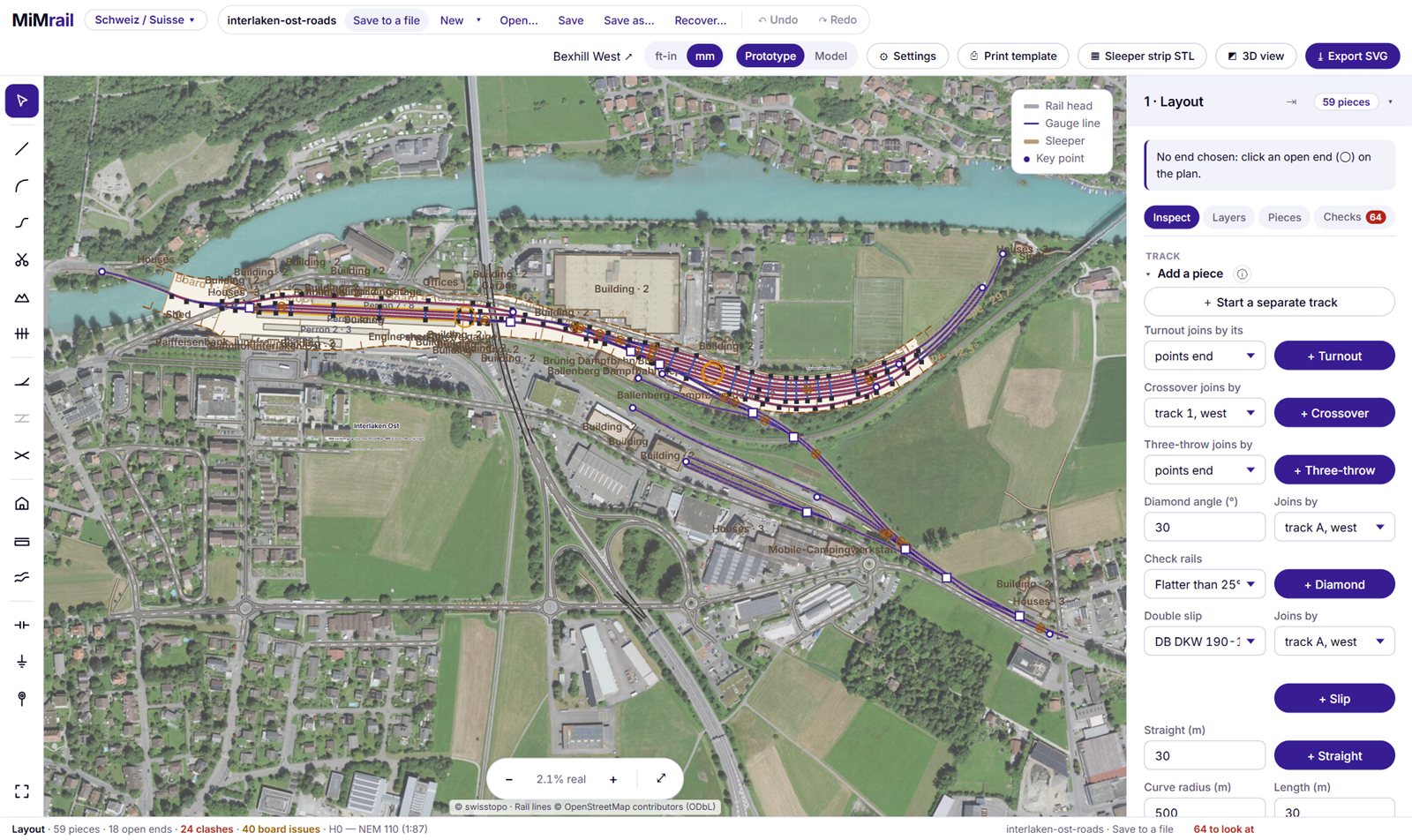
In Map (for tracing), paste a link from OpenStreetMap, OpenRailwayMap or Google Maps into Location, or type latitude, longitude, and press Go. That point becomes the layout's origin. MiMrail picks a map that covers it (an aerial photograph if there is one) and shows OpenStreetMap's rail lines.
Choosing a map
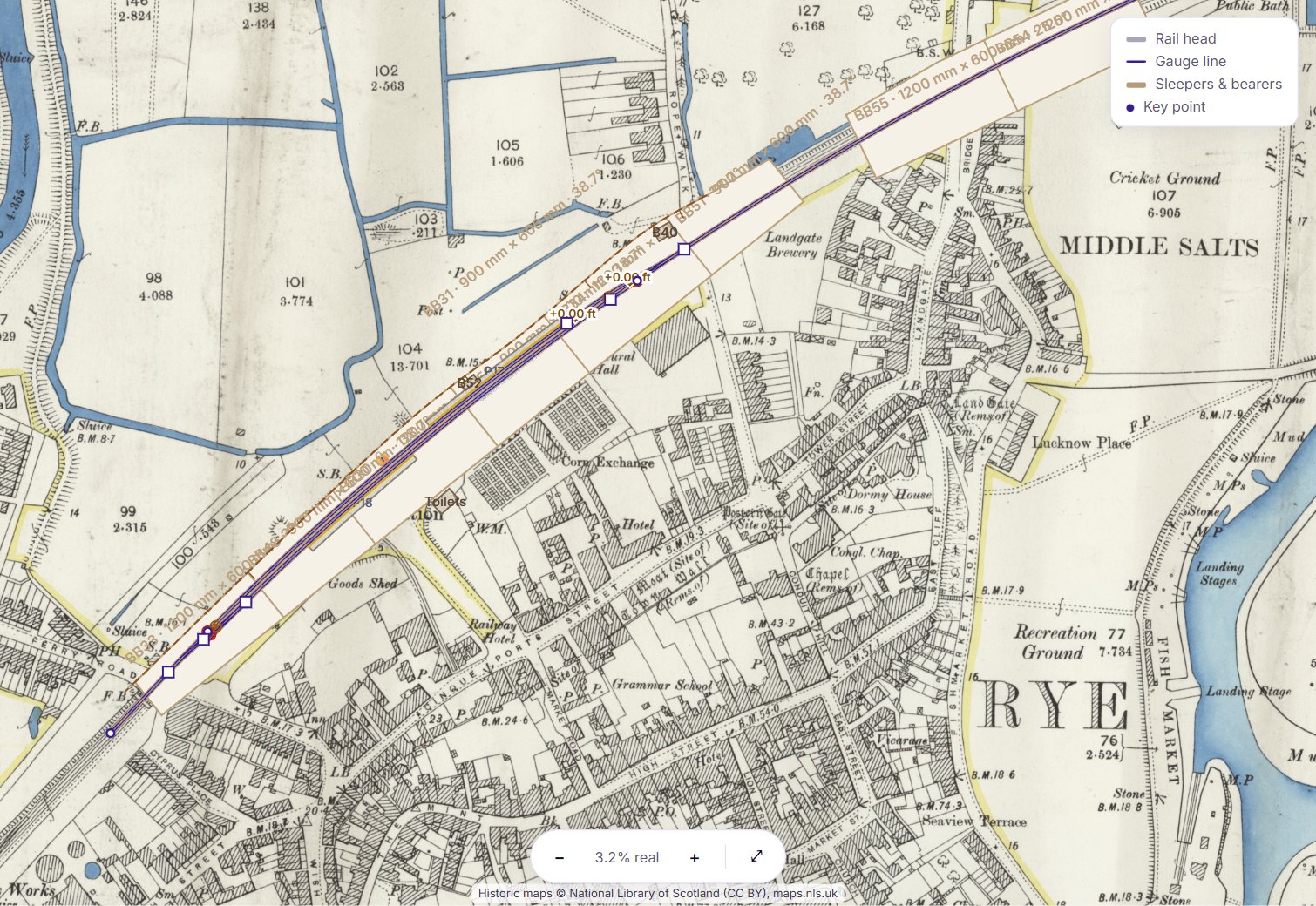
Map lists the maps of your country, OpenStreetMap, and any others that cover the place. Tick Every country's maps to list them all. Each map shows only over its own country (or state). Opacity fades it, so the track stands out.
| Where | Maps |
|---|---|
| Great Britain | National Library of Scotland: OS 25-inch 1892–1914, OS 1:10,560 1949–1970, Bartholomew half-inch 1897–1907, OS six-inch Scotland 1843–1882; and with a MapTiler key, OS six-inch 1888–1913, 1:25,000 1937–1961, the 1900s and 1920s–40s at all scales, one-inch "Hills" and Seventh Series, and the London five-foot plans |
| Germany | BKG TopPlusOpen (all Germany); orthophotos for NRW (10 cm), Baden-Württemberg and Sachsen (20 cm), Bayern (40 cm) |
| Netherlands | PDOK aerial photograph (8 cm), PDOK aerials year by year 2016–2026, the BRT background map |
| Switzerland | swisstopo SWISSIMAGE (10 cm), the national map, Journey through time 1844–2021 and the Siegfried map 1870–1949 (both by year), aerials of 1946 |
| Austria | basemap.at orthophoto (30 cm) and map |
| France | IGN orthophotos, Plan IGN, aerial photographs 1950–1965, the État-major map 1820–1866 |
| Australia | NSW aerials, topographic and base maps; Vicmap aerials and map; Queensland aerials; Geoscience Australia's national map |
| United States | USGS and NAIP aerial imagery, the USGS topographic map, historic USGS topographic maps 1884–2006 (by year and scale), Sanborn fire insurance plans |
| Everywhere | OpenStreetMap, and the OpenRailwayMap overlay |
The maps that go by year have a Year box: each place shows the edition nearest it. The historic USGS maps also have a Scale choice and Editions here…, which lists the editions covering the middle of the plan.
Some of the National Library of Scotland's maps come through MapTiler, which needs a free key of your own (non-commercial use, up to 100,000 tiles a month) from cloud.maptiler.com. Paste it into Your MapTiler key and press Use. It stays in your browser: it's never saved in a layout file, and an exported SVG leaves those maps out.
Sanborn fire insurance maps (United States)
Find the town on OldInsuranceMaps.net, open one of its maps, and under Mosaic → Derivatives copy its XYZ or TileJSON link (a single georeferenced sheet's link works too). Paste it into the Sanborn box and press Add. Each Sanborn map can be shown, hidden, gone to or removed, with its own opacity.
Turning the map
Map angle turns the map under the plan, so the line you're modelling can run along your baseboards. Square to line turns it so the rail line you've clicked runs straight across. With Turn the track with the map ticked (the default), traced track turns with the map and stays on its line; the boards stay put.
Laying track along OpenStreetMap's rail lines
- Tick Rail lines from OpenStreetMap data and zoom in so the view is less than 6 km across. The lines are drawn over the map: orange running lines, brown yards and sidings, purple tramways, grey dashes for disused lines, small circles at switches.
- Click a line to choose it. The box says what it is and how long.
- Leave Turnouts at its junctions ticked, and press Lay track along it.
MiMrail fits plain track along the line, straight on through the junctions, as far as the view, and puts the railway's turnouts where branches leave, choosing each from the angle the branch is drawn at. The message says how closely the track keeps to the line and gives its sharpest curve. Delete selected takes the whole traced track away again. Trace the branches the same way, then use the tidying buttons to settle overlaps and put in turnouts where they converge.
OpenStreetMap isn't survey-grade, and its frog angles are read from how the branch happens to be drawn. Check them against the aerial photograph, and let the Checks tab tell you what needs tidying by hand.
A plan underlay
To trace a published track plan, a scan, or a photo of your own sketch: in Plan underlay, press Load image or PDF… (or drop the file on the plan). For a PDF, choose the page. Then say whether the plan is drawn at model size (a layout plan, which stays with the room and boards) or at prototype size (a track map, which scales with the track), and scale it:
- ⟷ Set scale: click two points on it a known distance apart (two grid lines, the ends of a dimension) and type the distance.
- ⤧ Match 2 points: click a point on the plan, then where it belongs; then a second point and its place. It's scaled, turned and moved in one go. Places snap to the room's and boards' corners and to track ends. Keep it square scales and moves it only.
Set its angle and opacity, drag it by ✥, and tick Locked in place when it's right. The underlay is saved in the layout file but never printed or exported.
If you run a copy of MiMrail saved on your computer, OpenStreetMap's and OpenRailwayMap's map pictures won't load (they refuse pages opened from a file). Every other map, and the OpenStreetMap rail lines, still work. Opened from the website, everything works.
15Buildings, platforms and roads
Buildings
Press B and click each corner of the outside of a building's walls, over the map or the underlay. Click the first corner again, or press Enter, to close it. With Square up each outline ticked, corners are made right angles. Each building has a name and a number of storeys (3 m each), and is drawn under the track and stood up in 3D.
↗ BrickIT! beside a building saves its outline as a footprint file that BrickIT! opens at the same scale (in BrickIT!, open 📐 Plan and choose Footprint… to build its walls). ↗ Every footprint for BrickIT! saves them all, one file each.
Platforms
Press P, click one end beside the track, on the side the platform goes, then the other end. The platform follows the track, curves and all, its edge at a set distance from the track centre and its height above the rail. Each railway starts with its own figures, 3 m wide:
| Railway | Height above the rail | Edge from the track centre |
|---|---|---|
| Europe and Britain | 0.76 m | 1.65 m |
| North America | 8 in | 5 ft |
| Australia, NSW | 1.065 m | 1.575 m (ARTC's standard for new platforms) |
| Australia, Victoria | 1.08 m | 1.55 m |
Change the edge distance, width and height in the list; ⇄ moves it to the other side; Island… then a click on the other track makes it an island between them. Alt-click starts a freehand outline instead. Platforms move with their track.
Roads
Choose the kind of road in New road: footpath, farm track, single-track lane, street, minor road, B road or A road, each with its usual width and curve radius. Press 🛣 Road and click along its centre line, a point at each bend; Enter or right-click finishes. Corners are rounded into true curves. Start or end on another road to make a junction.
- In the list, set a road's width and corner radius, or a single point's (the edges taper smoothly between), and say whether it's on a bridge, in a tunnel, on an embankment or in a cutting.
- Over contours a road follows the land, smoothed along and level from edge to edge. Give its points levels and it runs on its own grades instead. The steepest grade is shown, flagged if steeper than 1 in 5.
- ⇣ Roads from OpenStreetMap fetches the roads in view (up to 3 km across), shown dashed: click one to bring it in, or Bring in all shown. Each comes with its class and its tagged width.
16Levels, ground and structures
Levels and gradients
A layout with no levels is level throughout. To give the track heights, press L and click the track: each click sets a level there, at the height the track has there. The first is the datum, 0 (the top of the benchwork). Between two levels the track runs at a steady gradient; beyond the last it's level.
- In the list, type a level's height to move it, or type the gradient to the next (
2,2%,-1.5,1 in 50) and the next level moves to suit. - Vertical curves: between two gradients, type a curve length, or press Smooth for the AREA / AREMA length. The list says whether it's a sag or a summit and its radius.
- Track joined to a track with levels follows its heights. Own levels gives it its own.
- If two ways round a loop bring the track to different heights, the level is flagged DOESN'T CLOSE, with the difference.
Show the levels and grades on the plan marks the levels, heights and uphill arrows.
The long section
◰ Long section beside a track in the levels list draws it the way a gradient is read: its length across at full model size, its height up and exaggerated (true, ×2, ×5, ×10 or ×20) so the grade can be seen, with its levels, gradients and vertical curves marked, and the ground under it where there are contours. Print it at 100%; a long section runs on across landscape sheets, each labelled, overlapping 10 mm.
The ground
Contours describe the land the track runs over. Set A new contour's height (above the datum), press G and click along the line; Enter finishes, clicking the first point closes it, and a single point finished with Enter is a spot height. Between contours the ground is drawn smoothly.
Or let MiMrail fetch it: with the map's place set and the view no more than 3 km across, ⛰ Ground from terrain data makes contours of the real ground from open terrain data (SRTM, EU-DEM, and Environment Agency lidar in England). The datum is set to the average ground under the track. Fetching again replaces only these; your hand-drawn contours stay.
Earthworks
Against the track's heights, the ground gives each track its cuttings and embankments, shaded on the plan and listed with their lengths and depths. Where the cover gets deep enough for a tunnel (5.2 m or more) or the fill high enough for a viaduct (3 m or more), it's suggested as a CANDIDATE with a Build it button. Where two tracks cross, it says whether they're level (they want a diamond), one clears the other, or they foul.
Structures
Tunnels, viaducts and bridges on the track. Either press Build it on a candidate, or choose a Kind, press ⌒ Structure and click where it starts and ends on the same run of plain track. Each has a name, length and width; a viaduct also has its arch spacing.
Where a scenic road crosses the track, the list says what's wanted: a level crossing if they're level, a bridge carrying the road over, or one carrying the railway over the road, with a button to make it. In the Netherlands a level crossing is fitted out as an AHOB (next section). Structures appear on prints and in 3D.
17Overhead line and lineside
A railway pack isn't only turnouts: MiMrail places some of the railway's own lineside equipment by the rules that railway used.
Overhead line
Offered for Switzerland, the Netherlands, Germany, Great Britain and Australia. Choose the Railway and check the rules it brings: the Longest span on straight track, the wire's Stagger either side of the track centre, and the Mast offset from the track centre. Your country's railway is chosen for you.
| Railway | Longest span | Stagger | Mast offset | Masts and portals |
|---|---|---|---|---|
| SBB (Switzerland) | 65 m | ±0.20 m | 3.0 m | AMC lattice masts, portals |
| NS / ProRail (Netherlands) | 70 m | ±0.33 m | 2.85 m | DIN masts, Type 1938 and modern portals, anchors at each 1500 m tension length |
| DB Re 160 (Germany) | 80 m | ±0.40 m | 3.24 m | Flat masts with the Re 160 cantilever, headspans |
| Network Rail Series 1 (UK) | 65 m | ±0.23 m | 3.52 m | Single- and twin-track cantilevers, portals |
| Sydney 1500 V DC (NSW) | 67 m | ±0.25 m | 3.0 m (estimated) | Steel columns, box-girder portals; contact wire 5.0 m |
| Melbourne 1500 V DC (Victoria) | 70 m | ±0.25 m | 3.1 m | Steel columns, box-girder portals, and lattice masts for older lines; contact wire 5.2 m |
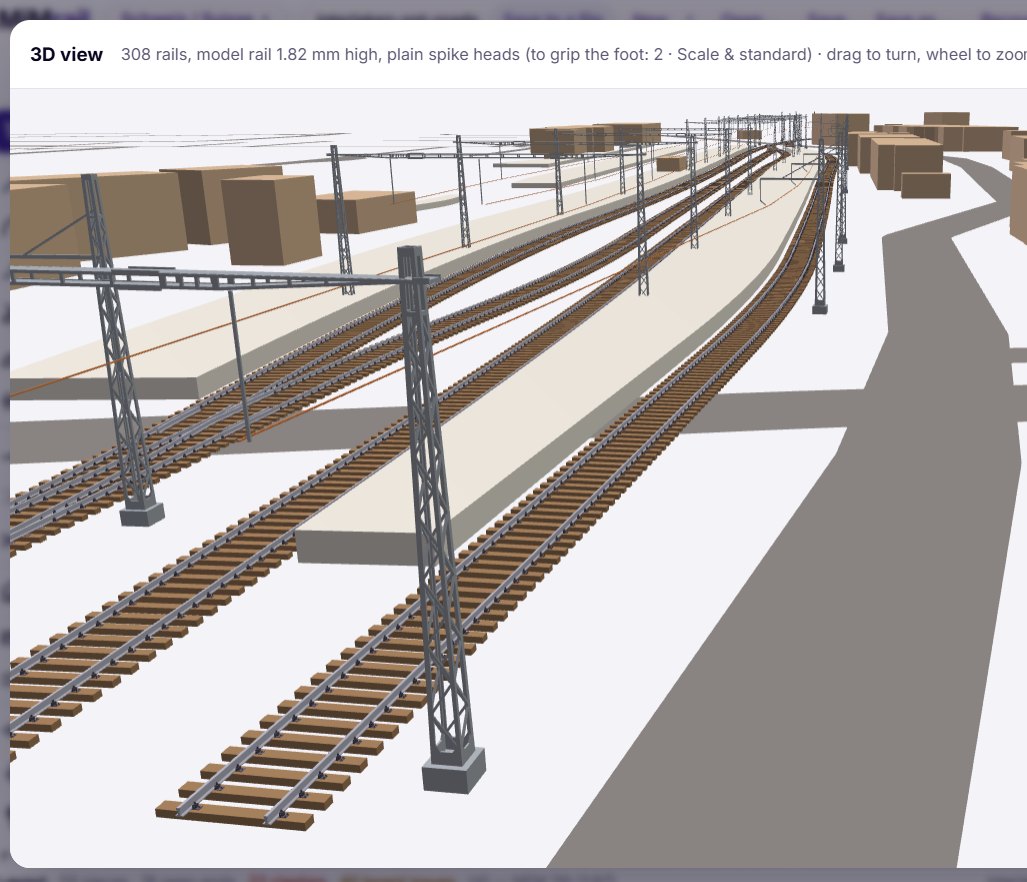
Then press ⚡ Place masts. MiMrail puts a mast over the middle of each turnout, shortens the spans on curves (the wire may stray only its stagger from the track between masts) and puts one portal across side-by-side tracks. The Australian systems use general steel masts for now rather than each railway's own shapes, and Sydney's twin contact wires aren't drawn.
✥ Edit masts lets you adjust them: click a mast, then click the track to move it there; click the track to add one; F flips it to the other side; Delete removes it. Warnings list any span where the wire would stray too far. On the 1:1 print, each mast's base is marked for drilling.
Dutch AHOB level crossings
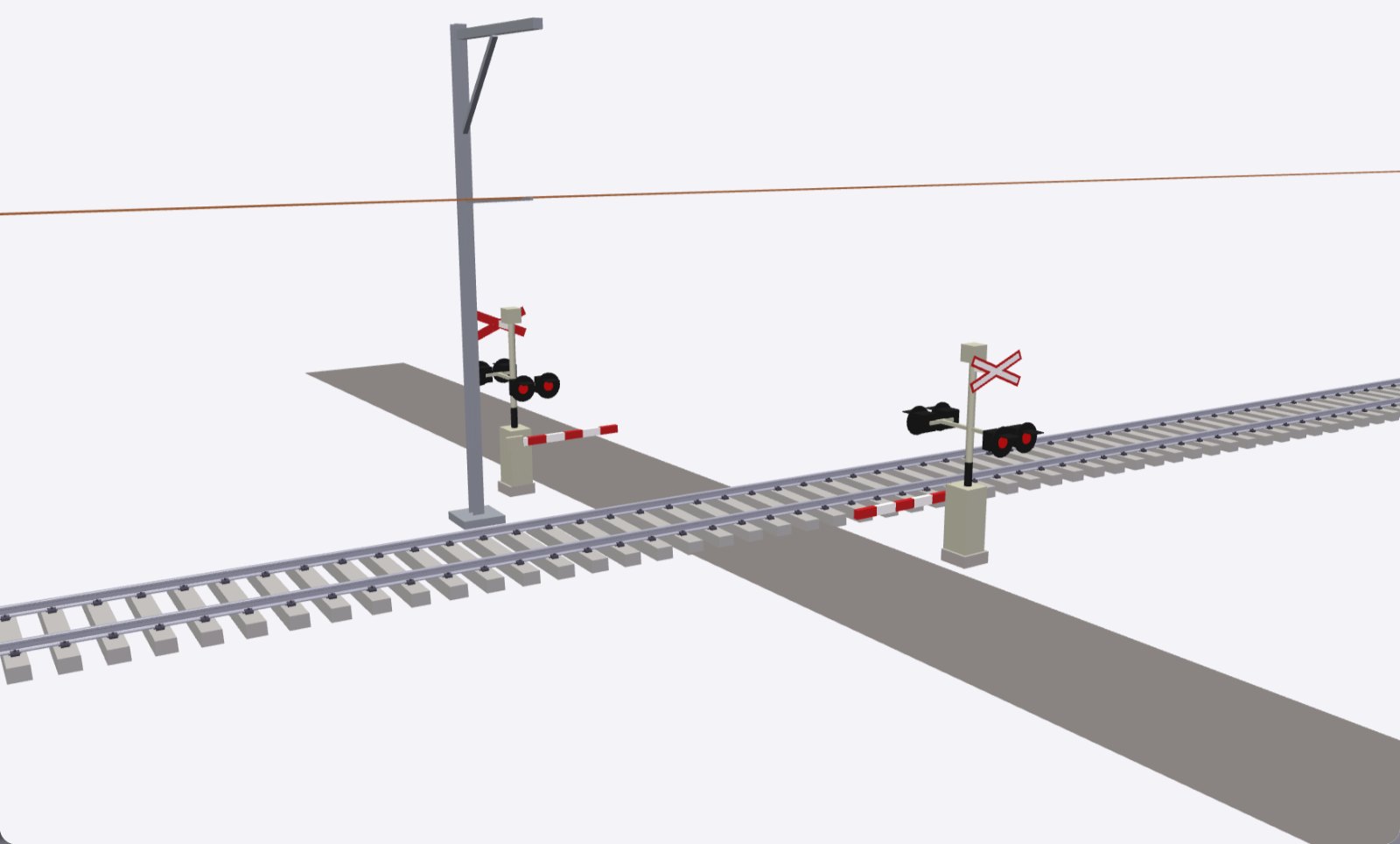
Make a level crossing where a road crosses the track in the Netherlands, and its equipment can be AHOB (ProRail half-barriers): half-barriers, lights and crosses on each approach, the right way round for the side of the road traffic drives on. Set how far the boom line is from the track and whether there's a rear boom for a cycle path. It warns if the road is wider than a 9.50 m boom can close. ⬇ STL gives a kit at your scale: a post and a boom for each.
Dutch hectometre boards
Select a plain track and press ⊞ + Km line. Set the kilometre at the track's start, which way the numbers rise and which side the boards stand. A board stands every 100 m, with a bigger board on a taller post at each whole kilometre, as ProRail's standard sets out. ⬇ STL gives the boards as a kit.
18Wiring and signals
You place the gaps, feeders and frogs; MiMrail works out the polarity of every rail, finds shorts and reversing sections, names the blocks and shows the signals' aspects.
Setting up
- Control: DC (cab control), DCC (power districts, auto-reversers, detection), Both, or Märklin 3-rail (Europe: centre studs in sections, both outer rails earth).
- Show the wiring on the plan draws it. Red and blue are the two polarities as the rails stand; grey is dead; faint is track no feeder reaches. In three-rail, each centre section has its own colour, brown is earth and orange a contact section.
Gaps, feeders and signals
- ⊣⊢ Gaps: click the track to put a gap (an insulated joiner or a cut) in both rails; Shift-click for just the rail nearer the click. Near a joint it goes at the joint. Click a gap to take it away.
- ⏚ Feeders: click the track for a feeder on each rail; Shift-click for one rail.
- 🚦 Signals (N): click beside the track, on the side the signal stands, for trains that have it on their right; Shift-click for trains the other way. Put it at the gap into the block it protects, or just before the points it guards. Tick Signals stand to the left of the track for railways that do (Britain does, and it's ticked for you).
With a wiring tool out, G and E switch between Gaps and Feeders. Esc puts the tool away. Each placement is an Undo step, and everything stays with its track when the track is edited.
Frogs
Select a turnout and choose how its frog is wired in Frog (wiring): Power-routing (the route not set is dead), Switched (the frog fed through contacts or a frog juicer; the default) or Isolated (a dead frog). ⇄ Set the other way throws it, to see the wiring the other way; it isn't saved.
Buses
Feeders are wired to buses: a DCC power district or auto-reverser, or a DC cab or reversing switch. + Add a bus adds one; name it and choose its kind. New feeders go to chooses the bus for the next feeders; the first is made for you with the first feeder. MiMrail works out whether each feeder goes to the bus's A or B wire from its rail (A⇄B swaps one by hand).
- Detection: one rail gapped (DCC): the A rail gapped into detection sections, each fed through its detector, the B rail continuous.
- Common return (DC): one rail of every block on a common wire.
Blocks and signals
Blocks are the stretches between gaps. Each takes its name from the line it's mostly on, or a number; type to rename it. Tick detected and give its sensor's name or address, as JMRI will know it. Mark a block occupied to see what the signals would show.
The Signals list gives each signal's block, the one beyond, and its aspect (three-aspect ABS): Stop if the block ahead is occupied or the route set against it, Approach if the next is occupied or the line ends, otherwise Clear.
Clear the wiring takes away every gap, feeder and signal, the names and detection given to blocks, and the frogs chosen, so you can start again. The buses stay, and Undo brings it all back.
The Feeder schedule lists, bus by bus, every feeder on the A and B wires, with its block, piece and board: the wiring list to work from under the boards.
What the wiring checks find
| Finding | Meaning |
|---|---|
| SHORT | The two polarities meet. A reversing loop or wye needs gaps in both rails at each end; a power-routing frog facing live track needs its rails gapped. Shorts that happen only with the points set another way are listed too. |
| REVERSING | The polarity changes across this gap: it needs an auto-reverser (DCC) or a reversing switch (DC). |
| NO FEEDER(S) | Track that no feeder reaches. |
| OUT OF PHASE | Two buses meet the wrong way round: swap one side's A and B, or feed it from an auto-reverser. |
| BUSES JOINED | Two buses connected through the rails. |
| SIGNAL · NOT DETECTED · DETECTOR | A signal far from any block boundary; a signal protecting an undetected block; a detected block with no feeder of its own. |
| NAMED TWICE · SAME NAME · LOST | Duplicate names; a gap or feeder whose track has gone. |
| FEEDERS · SKATE BRIDGE · NO EARTH | Three-rail: Märklin advises a feeder every 2–3 m; a pick-up skate bridges a centre break between buses; track with no earth. |
MiMrail checks every way the points can be set (up to 4,096 settings; beyond that, each set of points thrown alone and then a sample) and says how many it checked.
Signal sighting
Once there are signals, 👁 Check the sighting walks back from each one the way its trains come, looking from the driver's eye to the signal head every 5 m, and says where the view is first cut off: by the ground (dug out along the track), a building, a platform or the line itself. 190 m is wanted (seven seconds at 60 mph); shorter is flagged. On the plan, the stretch it's seen from is green, or orange if short, with a red cross where the view breaks. Check again after changing the layout.
19The 3D view
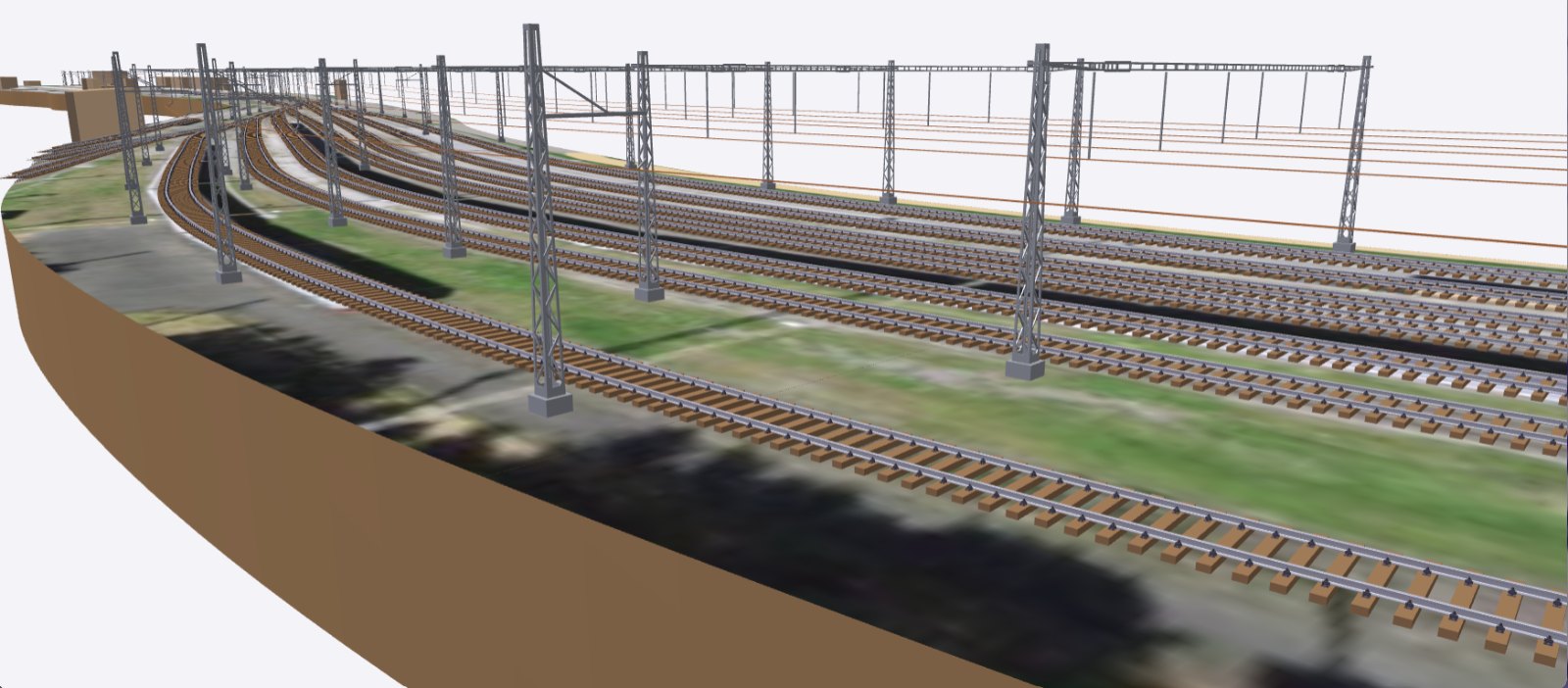
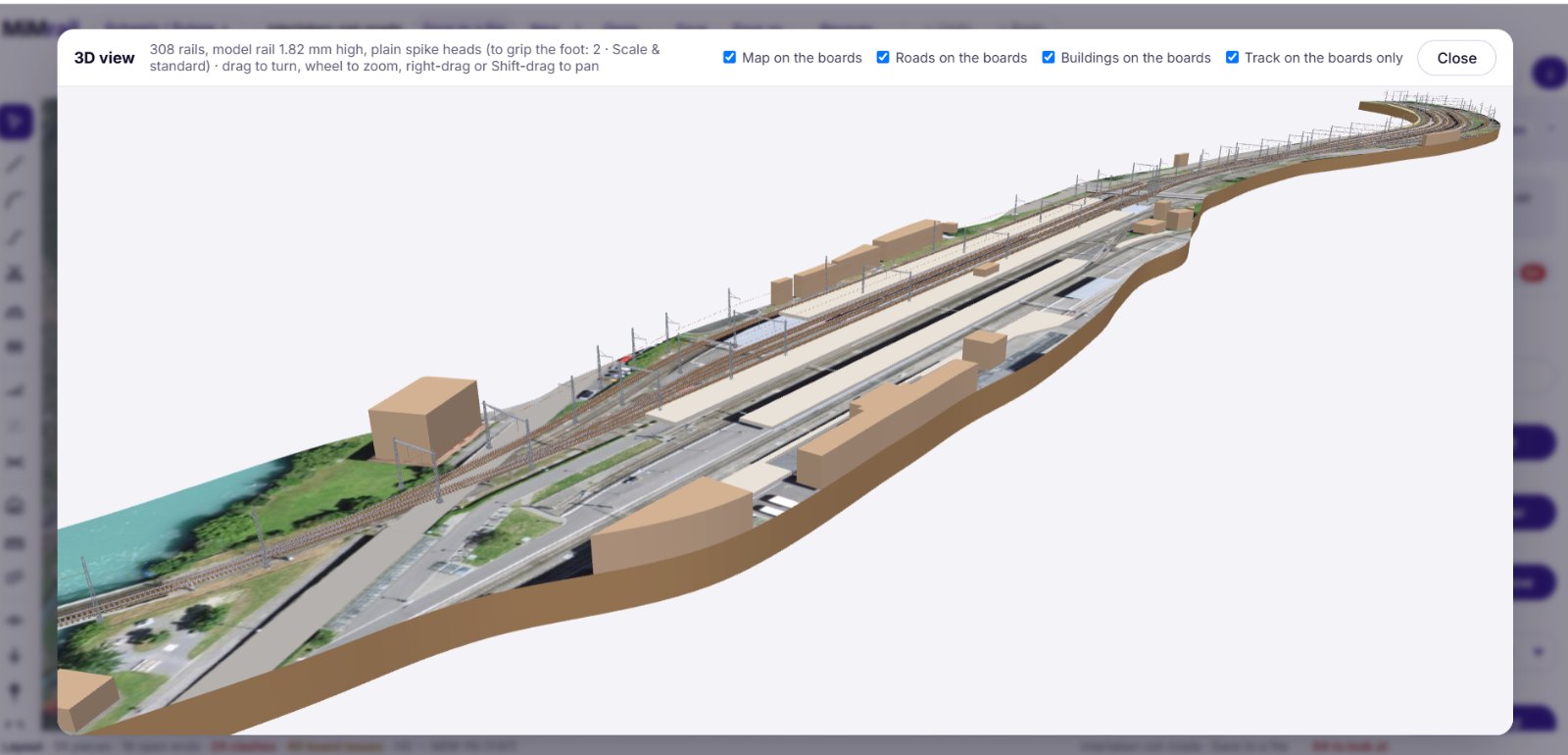
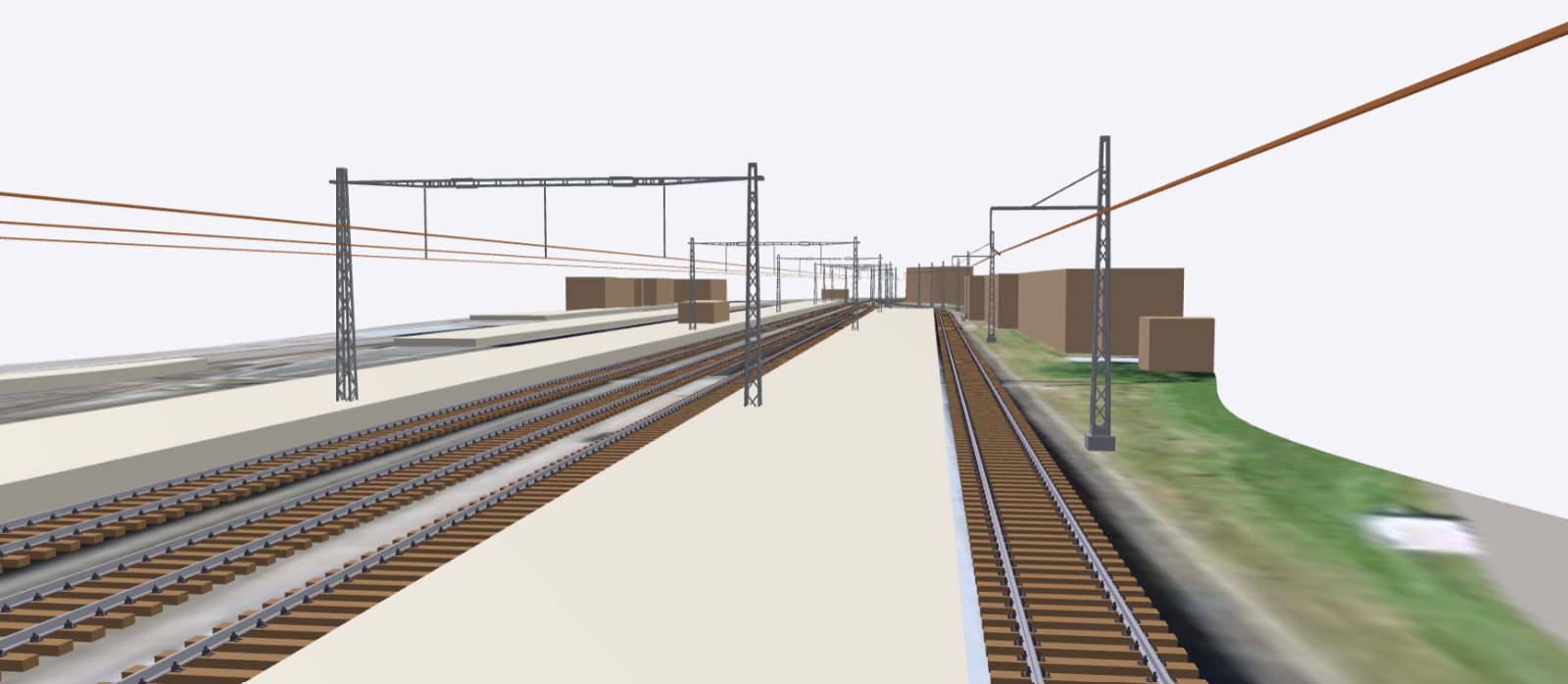
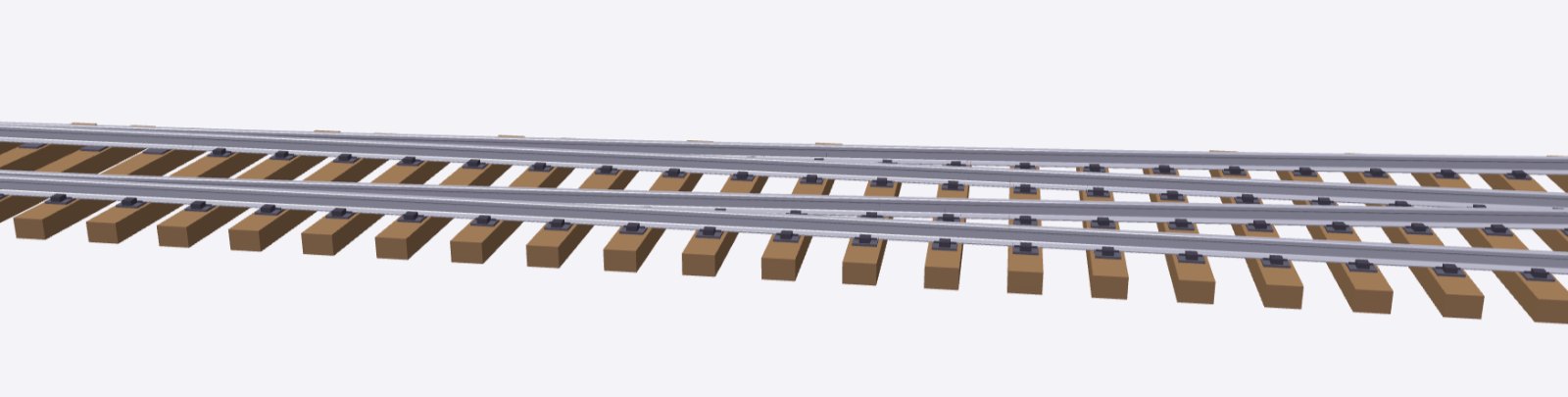
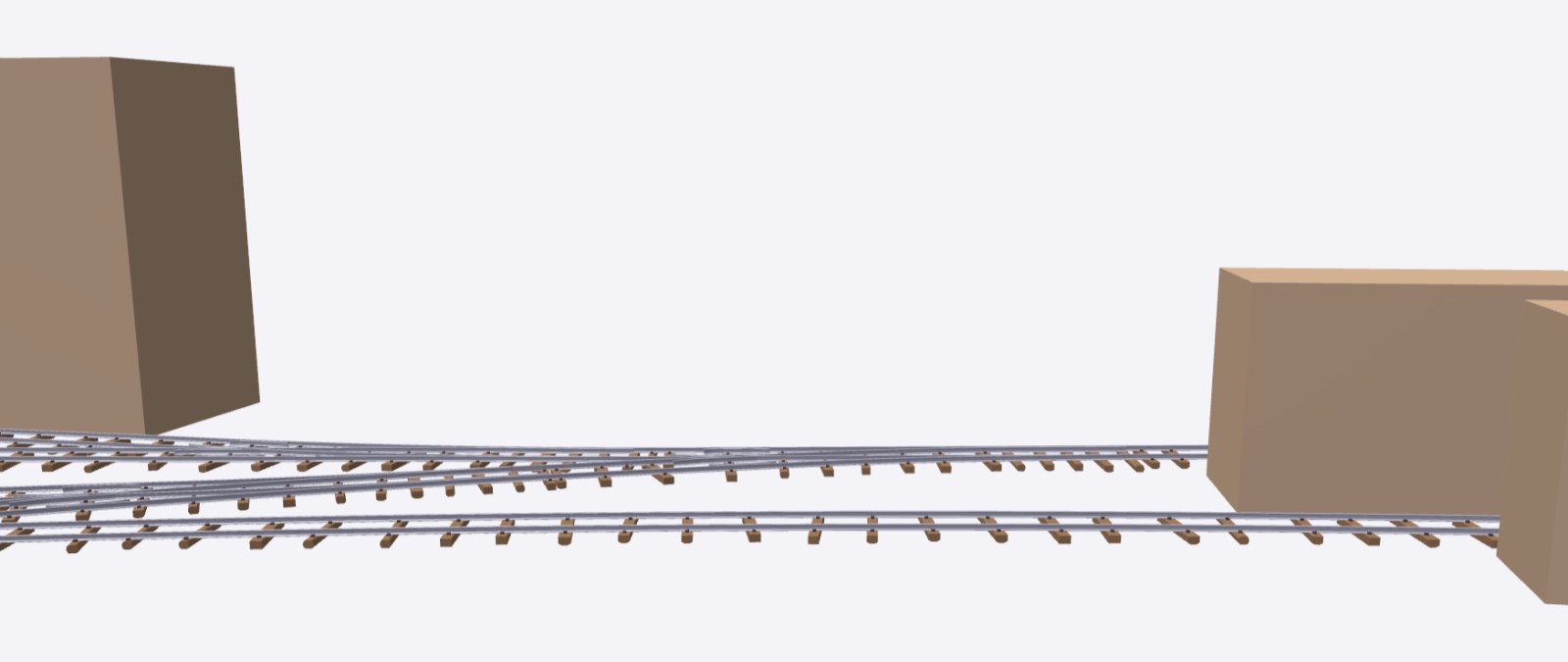
◩ 3D view builds the layout in 3D: the rails from the real rail section at the size of the model rail you'll use, on their sleepers, baseplates and fastenings, raised by the gradients; the ground from the contours with its cuttings dug; the baseboards; the buildings, platforms, roads, structures, overhead line and lineside equipment. It's there to check things: whether a platform clears, how a curve sits on the boards, what the approach to a station looks like from low down. The buildings are blocks for now.
The tick boxes along the top:
- Map on the boards: drape the map and underlay over the baseboards, cut to their outline (over the land, where there are contours).
- Roads on the boards: paint the roads on the board tops rather than standing them up.
- Buildings on the boards: cut the buildings to the boards' outlines.
- Track on the boards only: leave out track (and overhead line) that runs off the boards, so it doesn't float in the air.
A big layout takes a little while to build; a bar shows how far it's got, and Close stops it. Once built, the view opens instantly until something changes. The first time, it loads its 3D library from the internet.
20Prints, files and 3D printing
A plan on a screen doesn't run trains. MiMrail turns it into templates to build on, sleeper strips to print, laser-cut sheets and files for other programs. You don't need to have used a 3D printer or a laser cutter before.
During the preview these buttons are greyed out. This section is here so you know what's coming, and can get your plan ready for it.
Each export works on what's in front of you: the whole layout, or the piece you're designing, or (from a piece's own window) that one piece.
Printing a full-size template
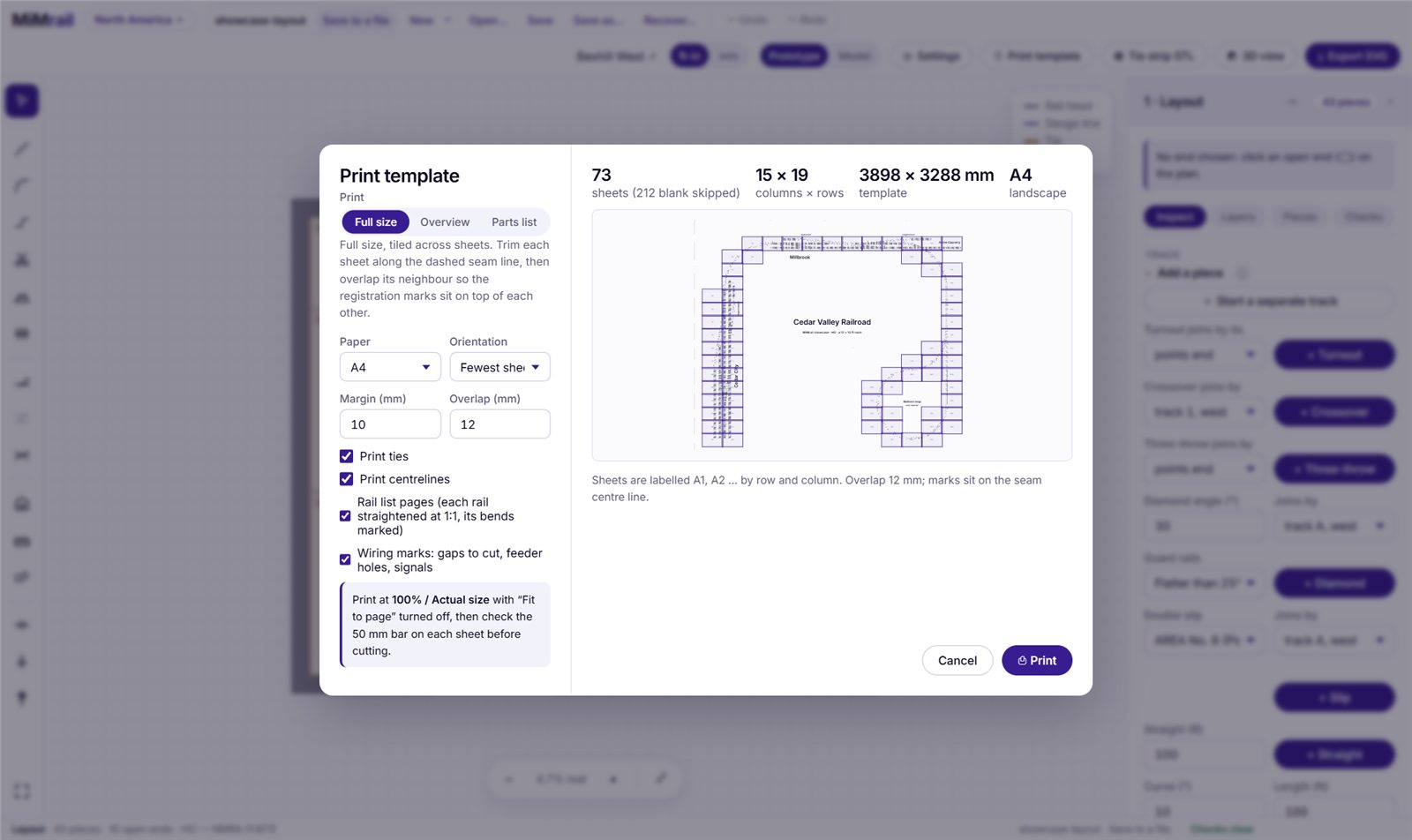
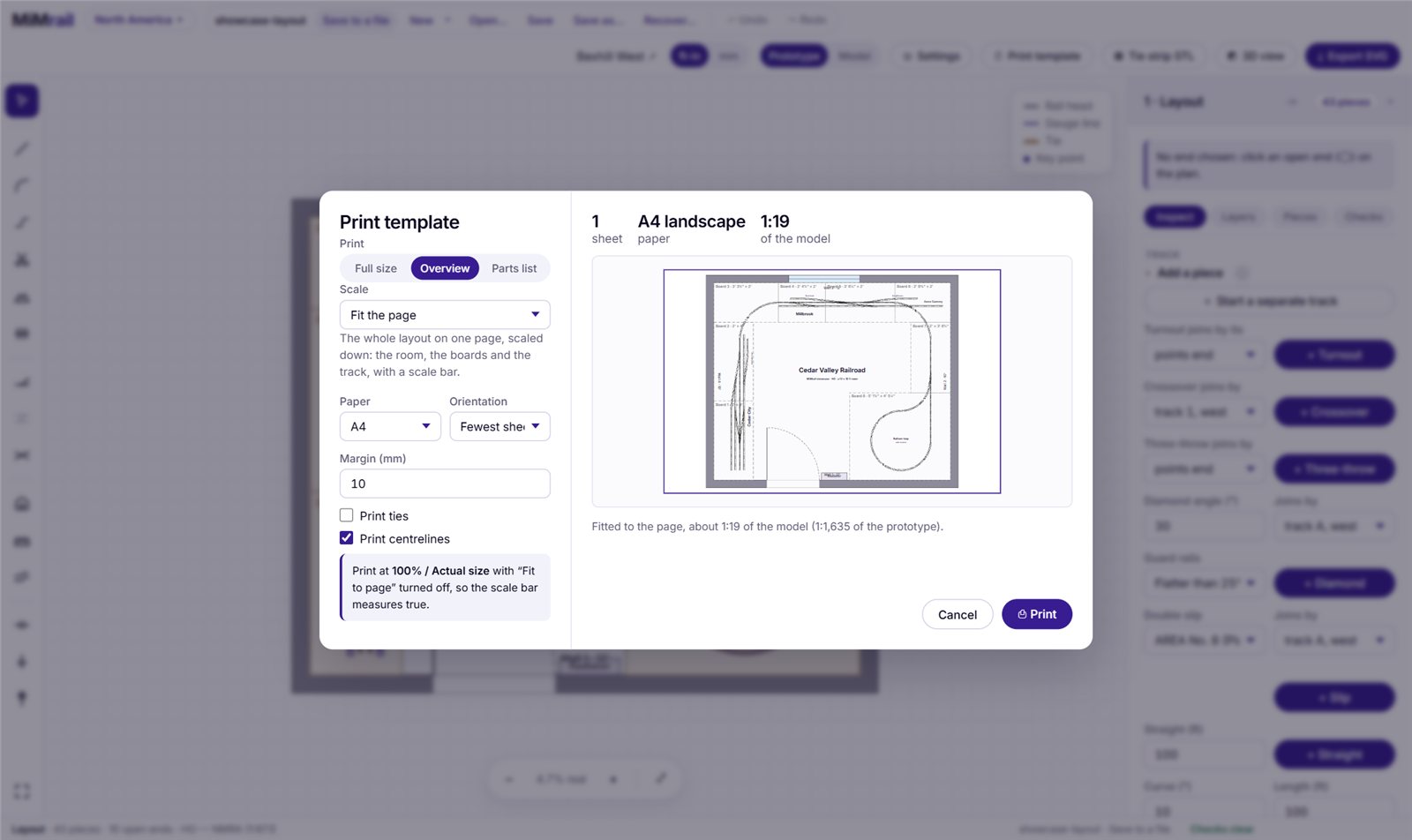
⎙ Print template prints the track at full size, tiled across as many sheets as it needs. For a whole layout, choose what to print: Full size, Overview or Parts list.
- Paper: A4, A3, Letter, Legal or Tabloid. Orientation: Fewest sheets chooses for you.
- Margin and Overlap (mm): how much each sheet overlaps its neighbour.
- Print ties (sleepers), Print centrelines, Rail list pages, and for a wired layout Wiring marks: gaps to cut, feeder holes to drill and signals.
The preview shows the sheets; blank ones are skipped. Each sheet is labelled by row and column (A1, A2…), with a little map of where it goes, registration marks (a circle and cross) in the overlaps, and a 50 mm bar.
- Press ⎙ Print; your browser's print box opens. Set it to 100% / Actual size, with Fit to page turned off.
- Measure the 50 mm bar on the first sheet. If it isn't 50 mm, your printer is scaling: fix that before going on.
- Trim each sheet along its dashed seam line, lay it over its neighbour so the registration marks sit on top of each other, and tape it.
Rail list pages (for a turnout, crossover or single piece) draw each rail straightened out at 1:1, its bends marked with their angles and positions, so you can cut and set every rail before you start.
A full-size template needs a model scale: at 1:1 it would be the size of the real thing.
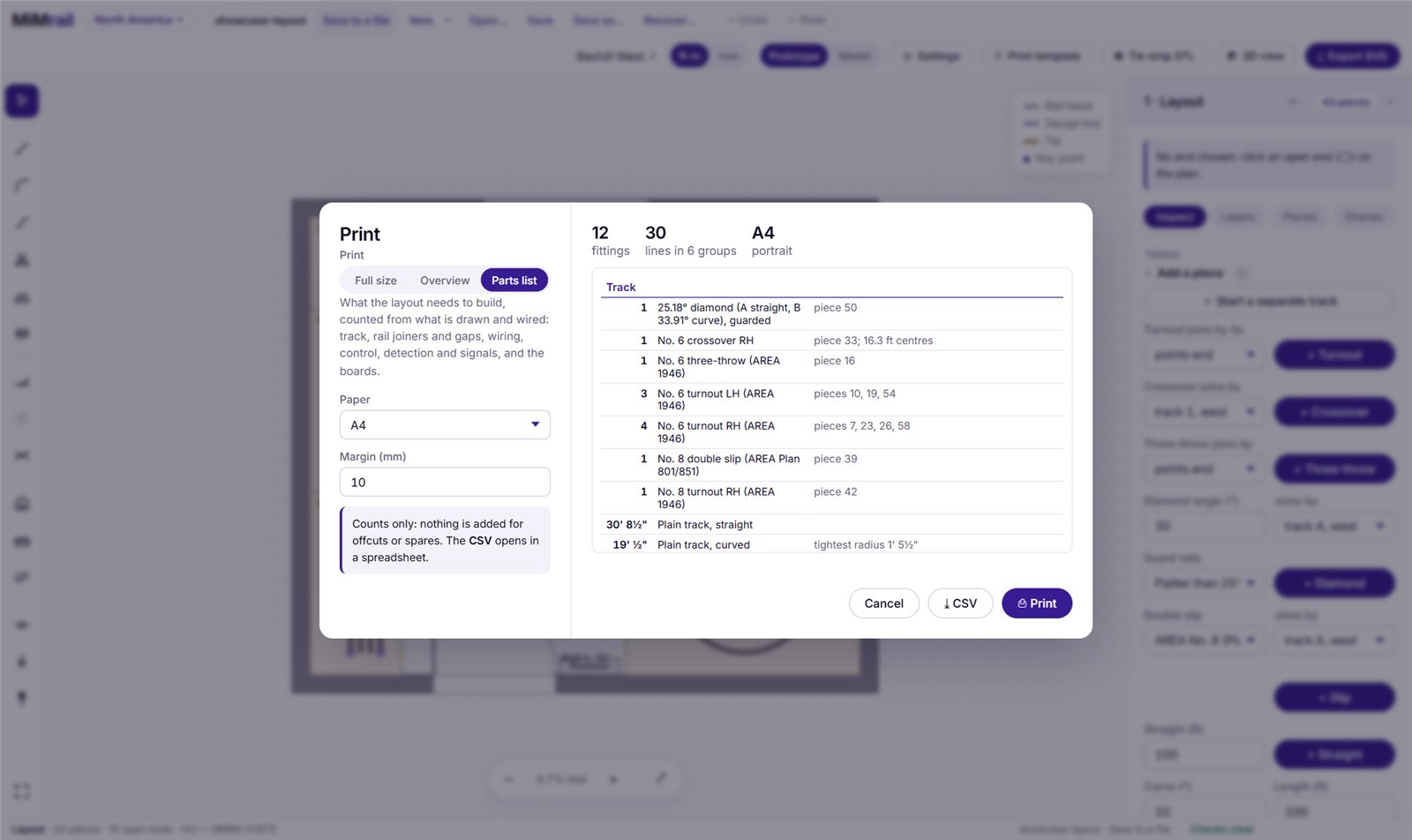
The parts list
Counted from what's drawn and wired: each kind of turnout and fitting, with its piece numbers; plain track, straight and curved, and how many yard lengths of flexible track that is; rail joiners, metal and insulated, and gaps to cut; blocks; feeders, droppers and buses; frogs to power; power districts, auto-reversers, cabs and reversing switches; sets of points to work; detectors and signals; lineside kits; and the baseboards by size. Nothing is added for offcuts or spares. ⤓ CSV saves it to open in a spreadsheet.
Export SVG
⤓ Export SVG saves the drawing as an SVG file at 1:1 in millimetres, to open in Inkscape, Illustrator, a CAD program or a cutter's software. It holds the track and boards as drawn (and the wiring marks for a wired layout), but not the room, and not the maps that need your MapTiler key.
3D-printed sleeper strips (STL)
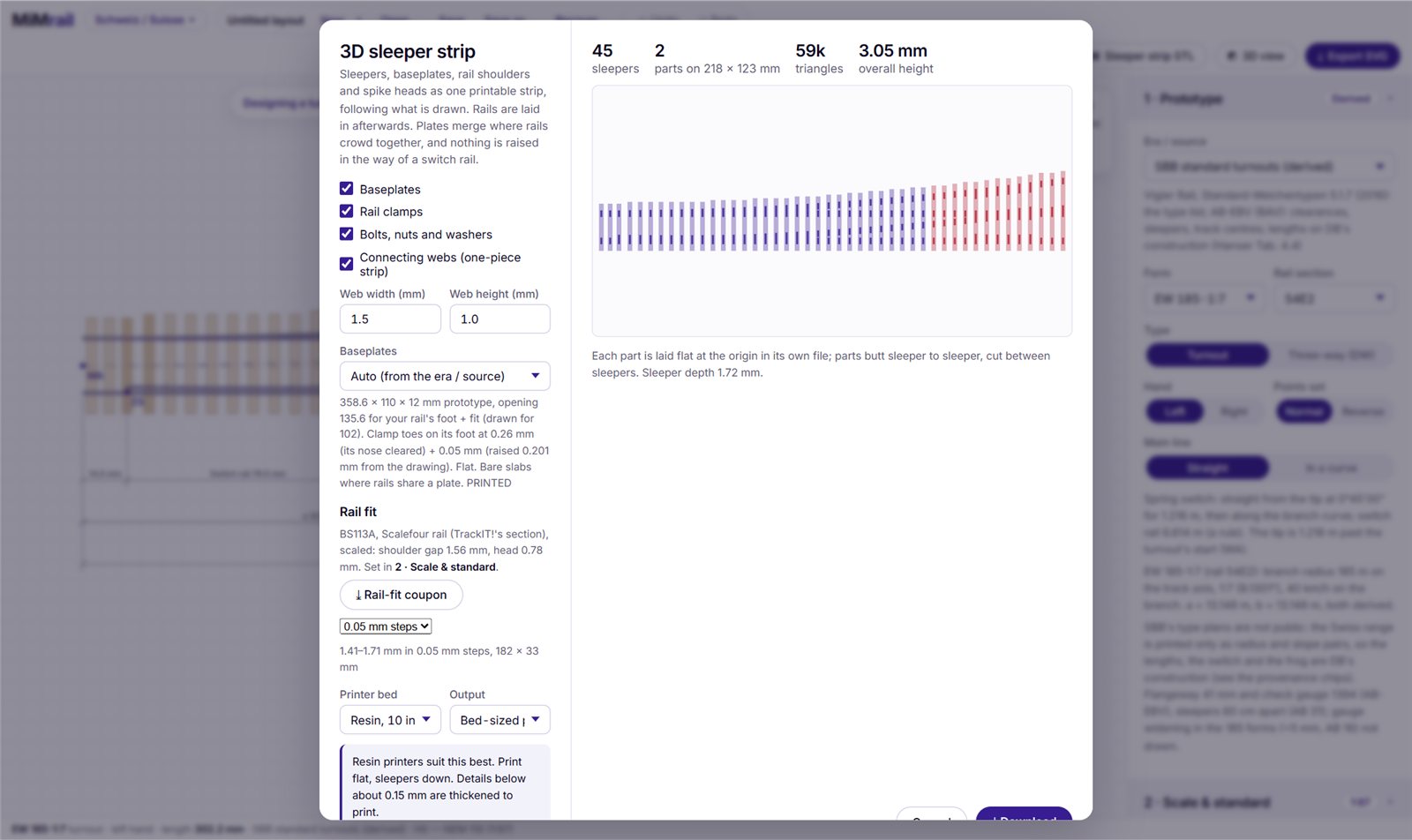
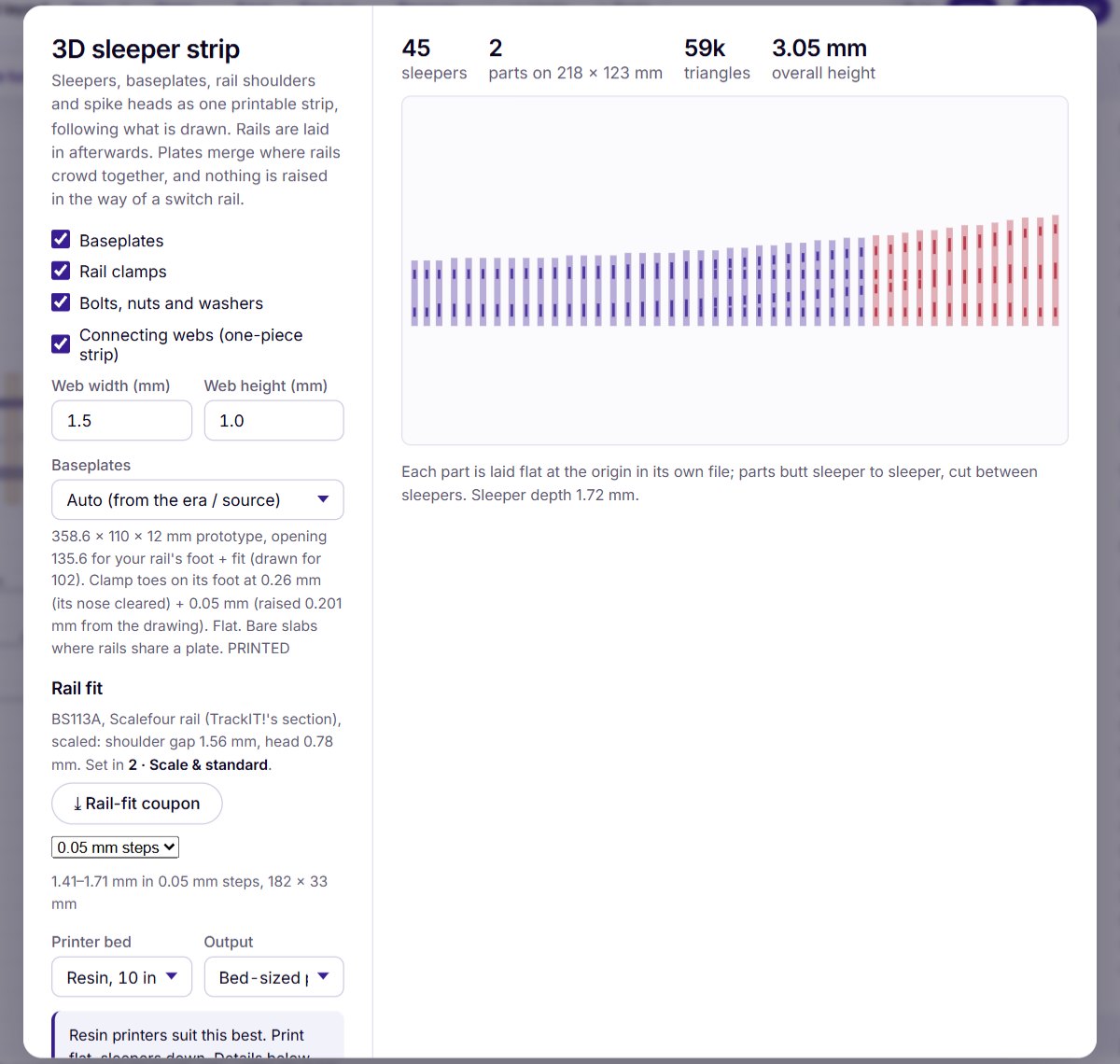
▦ Sleeper strip STL turns the sleepers under your track into strips for a 3D printer: sleepers, baseplates, rail shoulders and spike heads (or the railway's own fastenings: clamps, bolts, screws), joined by thin webs so each strip holds together. Print the strip, then slide your rail in: the fastenings hold it, and the strip follows every curve and turnout exactly as drawn. Where rails crowd together the plates merge, and nothing stands in the way of a switch rail.
- Tick what to include: Tie plates, the shoulders or clamps, the spike heads or bolts, the Connecting webs (with their width and height), and for a wired layout Wiring marks (a tab at each gap and a bar round each feeder's sleeper gap, to snip off once the track is laid).
- Tie plates: the railway's own where MiMrail has them (SBB, ProRail, narrow gauge, and AREA's by era). Where a railway's own baseplate isn't drawn yet, the dialog says a stand-in is used.
- Printer bed: small, 10 in or 12 in resin printers, 220 or 256 mm FDM printers, or your own size. Output: Bed-sized parts (a zip of parts cut between sleepers to fit the bed, each laid flat, that butt up to each other) or One STL, in place.
A resin printer suits this best. Print flat, sleepers down. Details smaller than about 0.15 mm are thickened so they print.
Coupons: getting the fit right
Model rail varies, so print a coupon before the track:
- ⤓ Rail-fit coupon: seven groups of sleepers, their shoulder gaps stepped 0.05 mm (or 0.02 mm) either side of your setting, each labelled. Try your rail in each; set Foot fit from whichever grips best.
- ⤓ Spike coupon: six groups with spikes from 0.6 to 2.0 mm, to choose a spike size your printer makes cleanly.
Laser-cut sleepers (SVG)
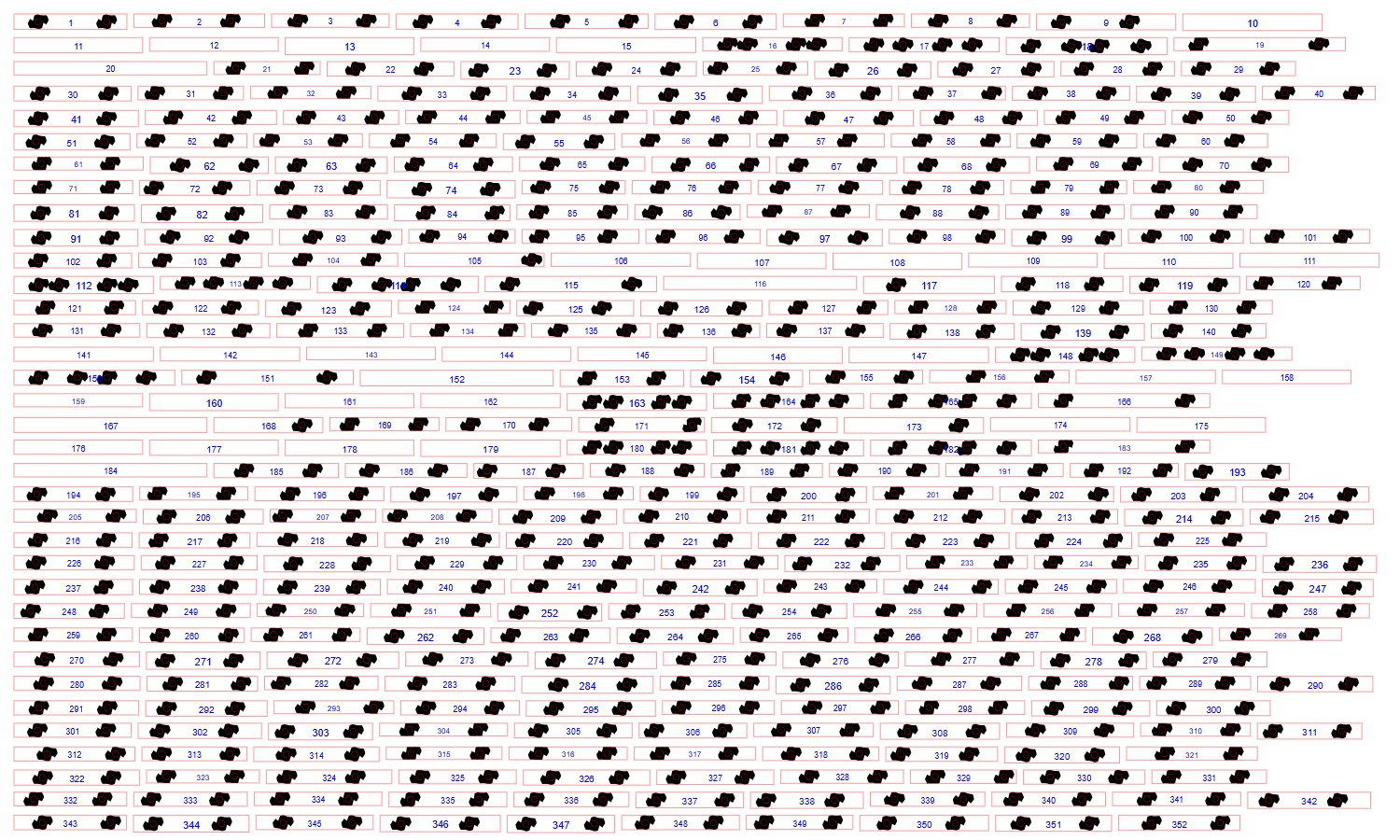
For narrow gauge now, and the other railways to follow: Laser-cut sheet (SVG) lays the sleepers out on sheets (300 × 200, 400 × 300, 600 × 300 mm or A4). Red lines are cut right through: each sleeper's outline and its holes. Black areas are engraved, burnt a set depth into the surface: the pockets for the spike bosses. Blue numbers are each sleeper's place in order, so it goes back where it belongs. The note says what thickness of ply or card to use and how deep the pockets are.
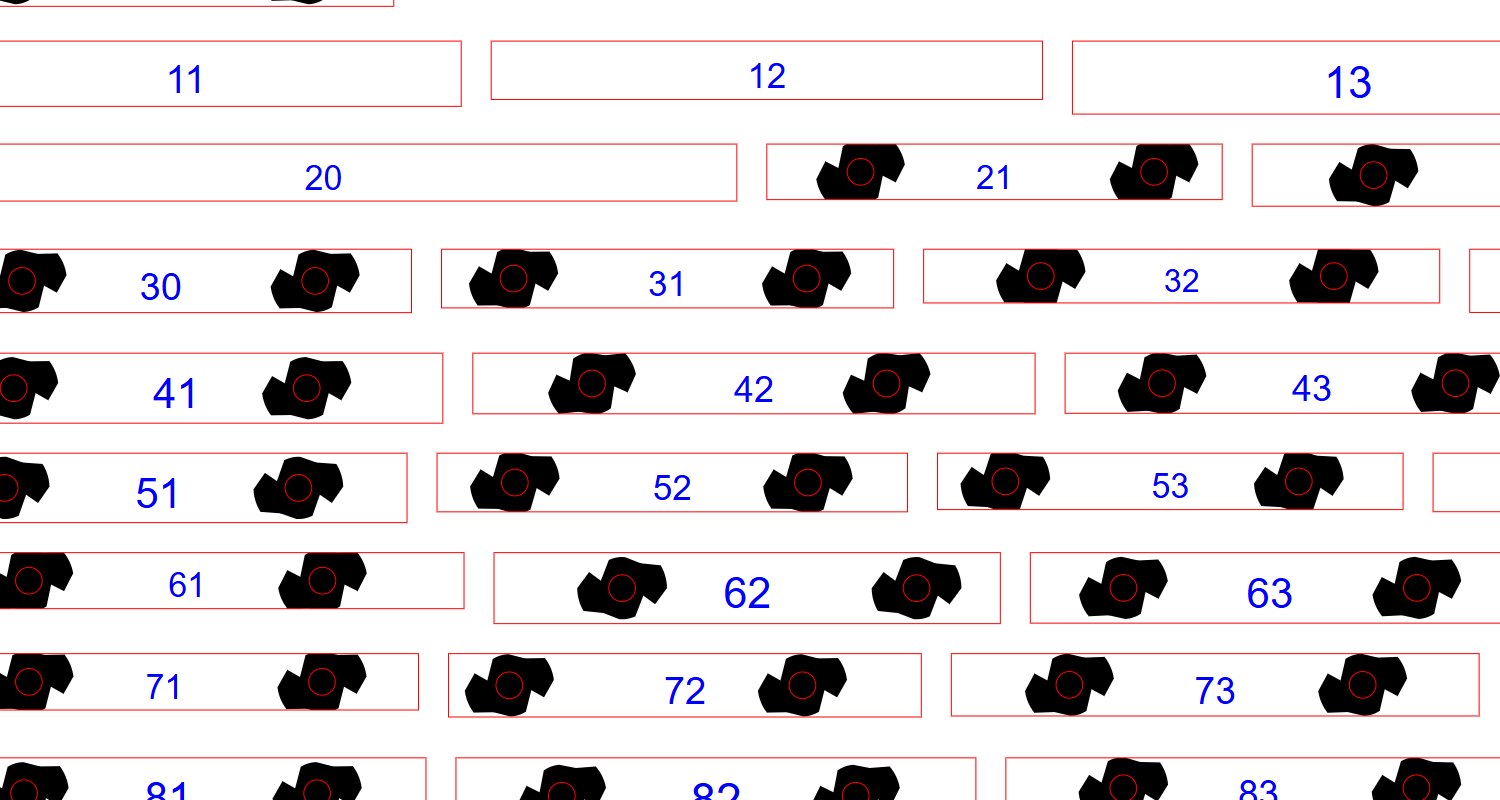
Board sides for the laser
✂ Sides → DXF (a selected board) and ✂ All sides → DXF save the boards' side panels as a 1:1 DXF for a laser cutter: one panel per edge of the board's real outline (trimmed by any fascia), its top following the land where there are contours, and the deck line scored. Cut lines are red, scores blue and labels yellow, as LightBurn and RDWorks expect.
Other files
- Lineside kits: AHOBs and hectometre boards as STL kits at your scale (section 17).
- BrickIT! footprints for buildings (section 15).
- The long section (section 16).
21Narrow gauge
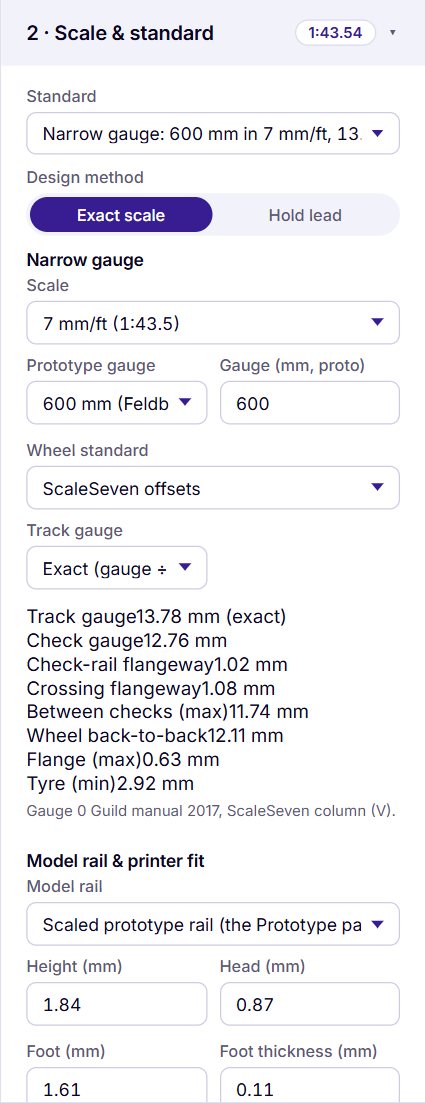
Narrow gauge modellers usually end up on commercial track of whichever gauge is nearest. MiMrail works the other way round: choose your scale, the prototype's gauge and a wheel standard, and it works out the model gauge, check gauge and flangeways exactly.
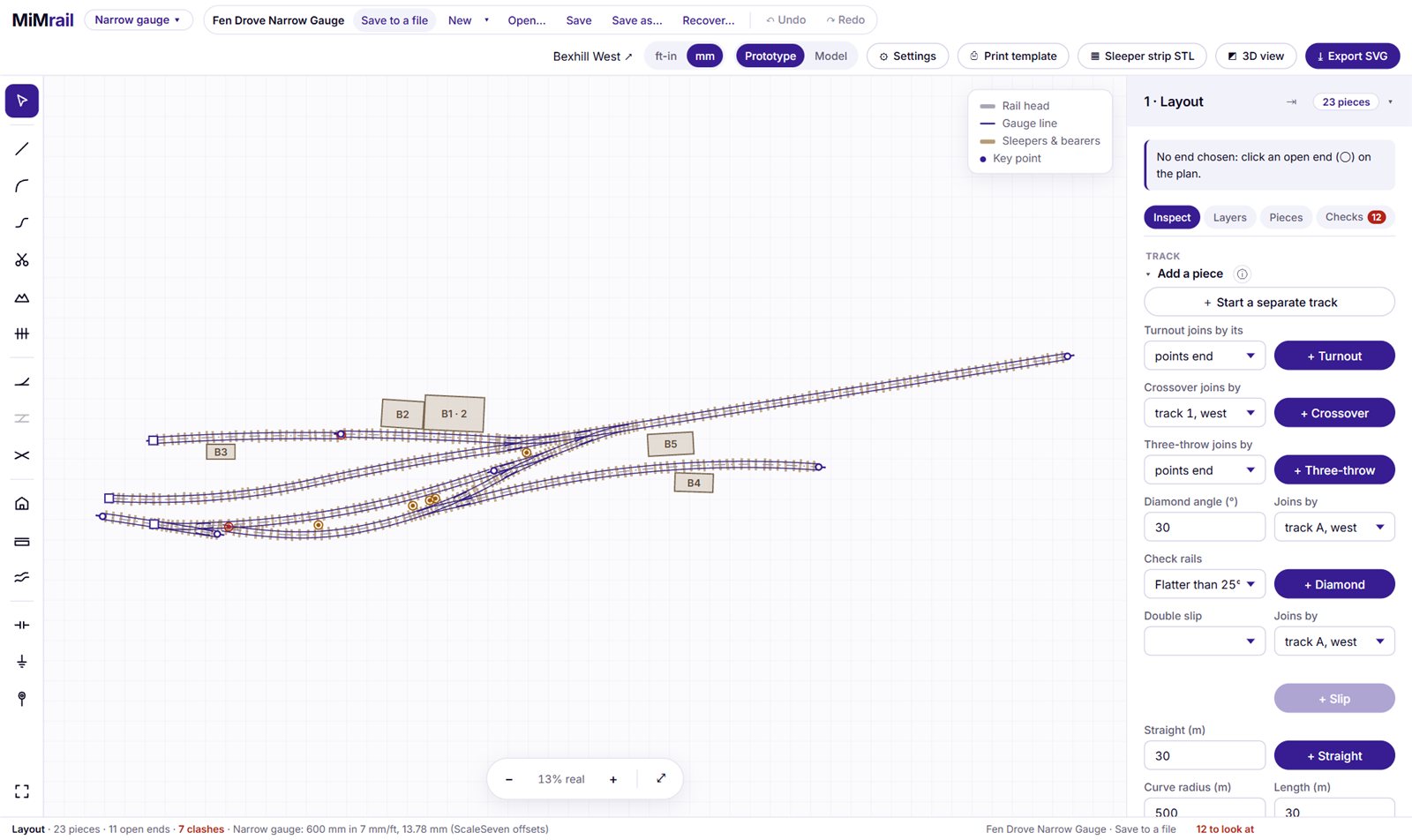
Scale and gauge
Choose Narrow gauge on the home page or in the country picker. In Scale & standard, the narrow gauge box has:
- Scale: 2, 3, 3.5, 4 and 7 mm to the foot, 1:45, 16 mm, 1:20.3, 1:22.5 and 7/8 in.
- Prototype gauge: 600 mm, 2 ft, 1 ft 11½ in, 1 ft 10¾ in, 2 ft 3 in, 750 mm, 2 ft 6 in, 18 in, 15 in, or any gauge in millimetres.
- Wheel standard: the first in the list is the exact-gauge standard for the scale (2FS, 3mm Society Fine, P4's or ScaleSeven's offsets and so on); the others suit commercial wheels.
- Track gauge: Exact (the gauge divided by the scale), or a commercial gauge such as 9 mm for 009, 16.5 mm or 32 mm.
The figures are listed underneath: track gauge, check gauge, flangeways, back-to-back, flange and tyre. A 2 ft line in 7 mm with ScaleSeven's offsets comes out at 13.78 mm; the same 600 mm line in 4 mm with P4's comes out at 7.87 mm.
The track is 600 mm field railway track on DIN light rail (S10 to S30), spiked to timber sleepers.
Turnouts
Choose a form in the Turnout designer's list. Each one is built for your gauge and scale, so a 1:5 in 2 ft gauge at 7 mm comes out right for that gauge, not stretched from 600 mm. The notes under the drawing say what the figures come from.
| Form | Where it comes from |
|---|---|
| 1:5 R 20 m | DIN 20452-1 (1988), built from its drawing: 4.61 m tip to tangent point, 6.52 m overall, the sleepers where the drawing puts them. The flangeway and throw are assumed. |
| 1:6 R 30 m | DIN 20462-1. The radius and slope come from DIN's table of the series; the rest is built by the 1:5's rules and is assumed. |
| 1:7 R 50 m | DIN 20472-1, built in the same way as the 1:6. |
| Symmetrical (Y), 1:5 | The 1:5 split both ways, each route about R 40 m and 5.71° off the straight, with the 1:5's crossing, sleepers and length. DIN has no Y; this one is derived. It lays only as a turnout, on a straight approach. |
| 1:4 R 12 m | Not a DIN form. The radius follows the way DIN's radii run, about 0.8 × n² metres. Everything about it is assumed and checked against no published figure. |
Crossovers, scissors, three-ways and turnouts in curves are built from these forms, as on the other railways. Crossovers start at 1.58 m track centres. The layout's least track centres start at 2.0 m instead of standard gauge's 13 ft; change it in Layout if your line differs. Diamonds take the layout's sleepers and start at 1:5 (11.31°), the turnouts' crossing angle, so one laid off a turnout's branch crosses the main line cleanly.
Plain track
Choosing narrow gauge sets plain track to suit a field railway: curves of R 20 m (the same as the 1:5), 10 m lengths, no cant and so no transition curves. The draw tool lays R 20 m curves, and the Layout boxes work in 5 m panels with shorter sidings and ladders. Choose a standard-gauge railway again and its own figures come back.
Plain track won't go below about 15.2 m (50 ft) radius, so it can't yet follow the 1:4's R 12 m curve beyond the turnout.
Laid by eye
Field railways were never laid with a ruler. In the Sleepers panel, choose a preset (Engineered, Light railway, Colliery / temporary, WWI trench railway) or set your own: how far the spacing, skew, offset, length and width of each sleeper wander, how much the turnout's own timbers join in, and what share are half-logs and pit props, and how round. Re-roll lays it again; the same seed always gives the same track. However rough they look, every sleeper is flat on top where the rail sits and flat underneath, so a panel lies flat and the rails stay level.
Twist-lock spike bosses
At these sizes a printed spike breaks easily, so MiMrail can print each rail fixing separately: choose Rail held by Twist-lock spike bosses. Each boss has a crush-ribbed shank that presses into a hole through the sleeper, a cap under the rail foot, and a spike head at two opposite corners.
- Print the Boss coupon (STL): sleepers with holes stepped 0.05 mm about the shank, and 20 bosses. Choose the Press fit that holds.
- Make the sleepers, printed or from the laser sheet, and the bosses, which come as their own file on rafts with their settings written on.
- Press each boss into its hole with the spikes turned open, lay the rail, then turn each boss to lock its spike heads over the foot.
Set the cap thickness (the rail stands that much higher), shank diameter, sleeper depth, cap shape and where the connecting ribs go. The panel warns if your sleepers are too narrow for the bosses.
22The railways in MiMrail
| Railway | Turnouts and track | |
|---|---|---|
| North America AREA · AREMA | Live | AREA 1946 Nos. 5–20; AREA 1910–1945 tables; Weir 1893 (stub and spring switches); New Haven 1908; modern AREMA (provisional); Metrolink, BNSF and Union Pacific drawings; Custom. Three-throws, AREA No. 8 and 10 double slips, scissors. Rails 90 ARA-A to 141 RE. Model lines: Peco, Micro Engineering, Walthers, Atlas (HO and N). |
| Germany DB · DR | Live | The Grundformen: EW 190-1:9 to 1200-1:18,5; DKW and EKW 190-1:9; S49, S54, 60E1. |
| Switzerland SBB · BLS · SOB | Live | EW 185-1:7 to 1600-1:25; DKW / EKW 185-1:9; 46E1, 54E2; wood, B70 and B91 sleepers; SBB's clamped baseplate. Lengths derived, as SBB prints only radius and slope. |
| Netherlands ProRail · NS | Live | GW 1:7 to 1:18,5 and symmetrical forms, rebuilt from ProRail's open data; Engels wissel 1:9; 54E1, 46E3; NS90, Merk 2 and azobé sleepers. AHOBs, hectometre boards, NS overhead line. |
| France SNCF | Live | The 1949 unified turnouts, tg 0,13 to 0,05, symmetrical forms; TJD and TJS; jonctions croisées; U50. |
| Great Britain Network Rail · BR | In progress | All 61 BS113A turnouts AV to HV, circular and transitioned, crossovers, scissors, diamonds, slips; NR56V concrete. British model standards, each with its own turnouts. |
| Australia, NSW ARTC · 1435 mm | Live | Conventional 1 in 8.25 to 1 in 15 and tangential turnouts; AS60, AS50. Sydney 1500 V overhead line; ARTC platform heights. |
| Australia, Victoria VR · 1600 mm | Live | VR's 1938 turnouts (600, 800 and 1000 ft, 1 in 7.52 to 1 in 9.73), the 1942 turnouts for 94 / 107 lb rail, No. 9.73 for 47 / 53 kg, and No. 5 and No. 6 symmetrical junctions, checked against the VRI Permanent Way course of 1947. VR's 11 ft 8 in crossovers lay as drawn. Melbourne 1500 V overhead line; Victorian platform heights. |
| Narrow gauge 600 mm field railways | First step | DIN 20452 1:5 R 20 m, 1:6 R 30 m and 1:7 R 50 m turnouts, a symmetrical 1:5 and an assumed 1:4 R 12 m; crossovers and diamonds; S10–S30 rail; sawn, half-log and pit-prop sleepers; any scale and gauge. |
| European model track | Live | Märklin C, K and M; Roco Line and geoLine; Fleischmann Profi; Tillig Elite; Piko A; Weinert; Peco code 75; Tillig H0m, H0e and TT; Roco TT; Fleischmann N, Minitrix, Arnold; LGB. |
| Austria · ÖBB | In preparation | ÖBB uses the DB turnout families. |
| Everywhere else | Later | Suggestions welcome (see below). |
23Keyboard shortcuts
Press ? in the app for this list. Keys don't act while you're typing in a box. The letters mean the same in every app of the suite.
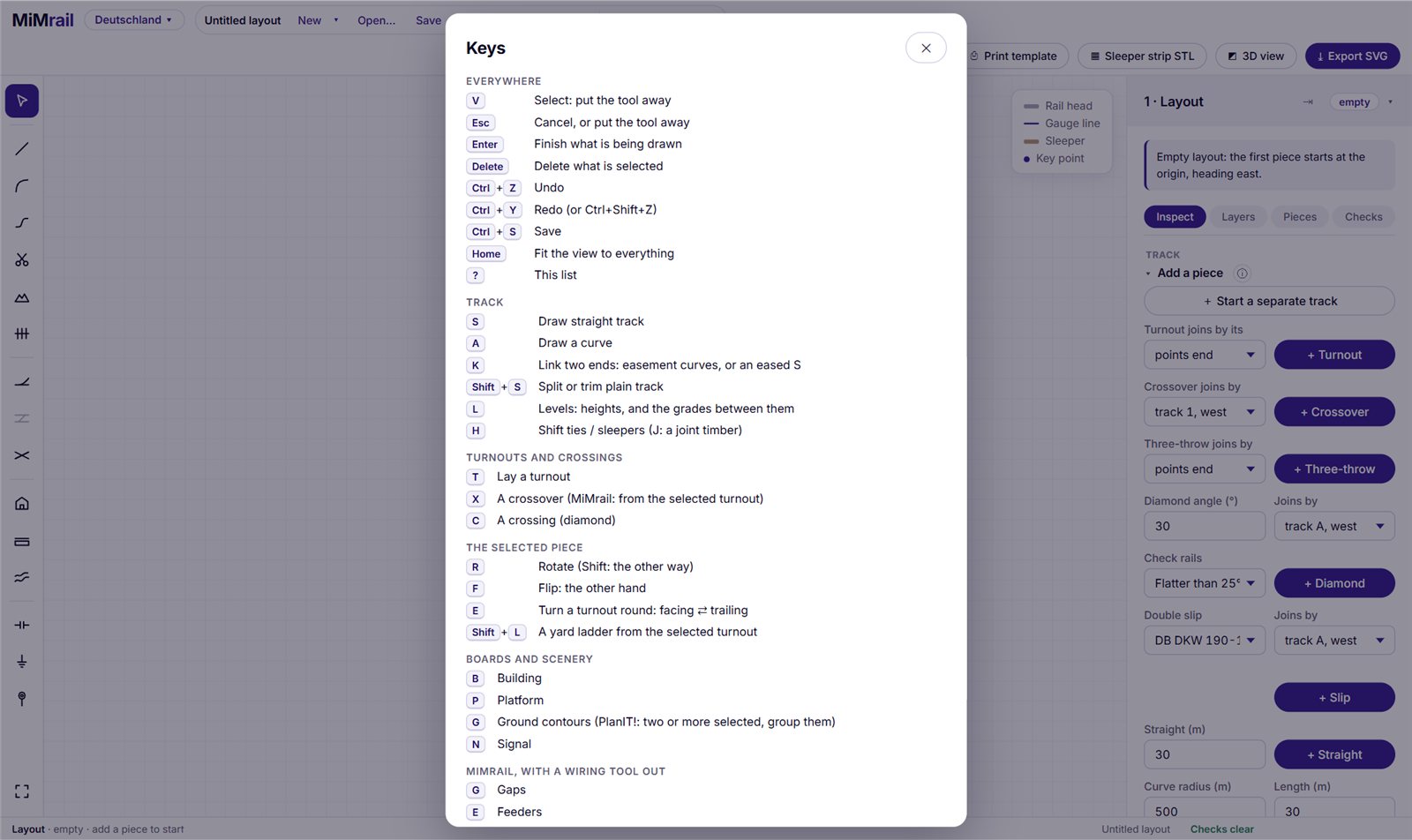
| Keys | Does |
|---|---|
| Everywhere | |
| V | Select: put the tool away |
| Esc | Cancel, put the tool away, deselect, or leave a designer or detail |
| Enter | Finish what is being drawn |
| Delete | Delete what is selected (Shift: a piece and all beyond it) |
| Ctrl+Z / Ctrl+Y | Undo / Redo (or Ctrl+Shift+Z) |
| Ctrl+S · Ctrl+Shift+S · Ctrl+O | Save · Save as · Open |
| Home | Fit the view to everything |
| Arrow keys | Pan (Shift: smaller steps) |
| Alt+1…4 | Inspect, Layers, Pieces, Checks |
| ? | The key list |
| Track | |
| S · A | Draw straight track · a curve (Shift held: straight on; Alt: no snapping) |
| K | Link two ends with easement curves |
| Shift+S | Split or trim plain track (T switches) |
| L | Levels |
| H | Shift sleepers (J a joint timber, B a block) |
| Turnouts and crossings | |
| T | Lay a turnout (again: the next of its family) |
| X | A crossover from the selected turnout |
| C | A crossing (diamond) |
| The selected piece | |
| R · Shift+R | Rotate, either way |
| F | Flip: the other hand |
| E | Turn a turnout round: facing ⇄ trailing |
| Shift+L | A yard ladder from the selected turnout |
| Boards, scenery, wiring | |
| B · P · G | Building · Platform · Ground contours |
| N | Signals |
| G · E | With a wiring tool out: Gaps · Feeders |
| Drawing outlines (buildings, roads, contours, fascias) | |
| Backspace | Take the last point back |
| Enter or right-click | Finish |
24Questions and problems
Nothing happens when I click the plan.
Look at the banner at the top of the plan: a tool is probably out, and the click means something to it. Press V or Esc to put it away.
A button or a tool is greyed out.
Hover over it: the tip says why. The usual reasons: it needs a turnout selected (X, the formation buttons); it needs a model scale (the room, boards, prints, sleeper strips) while the standard is Prototype; or your railway hasn't got that kind of piece (three-throws and slips from a maker's range, single slips outside DB, SBB and SNCF). In the preview, the exports are greyed out on purpose.
The new piece went to the wrong place.
It joins at the chosen open end: click the end you want first. On an empty layout it starts at the origin. Undo, choose the end, and add it again.
My curve won't draw.
The note under the banner says why: too sharp (under 50 ft or 15 m prototype radius), behind the end, or too close. Click further ahead.
I can't see the map.
Set the place first (section 14). Each map shows only over its own country. The NLS maps marked as needing a key want your MapTiler key. And if you're running MiMrail from a file on your computer, OpenStreetMap's map pictures won't load.
The OpenStreetMap rail lines don't appear.
Zoom in: they're only fetched for a view less than 6 km across. If the service is busy, MiMrail tries again after half a minute; Fetch again asks straight away.
My printed template is the wrong size.
Print at 100% / Actual size with Fit to page off, and check the 50 mm bar. Some printers' own settings scale as well.
The rail won't go into the printed strip (or falls out).
Print the rail-fit coupon, find the seat that grips, and set Foot fit from it. Measure your rail and save its sizes (section 6).
I lost my layout.
Try Recover… first: copies are kept in the browser. If the page says it remembers your file, click Open… in the file strip. To stop it happening again, save to a file with Save as… and keep autosave on.
Can I use MiMrail on more than one computer?
Yes: copy your layout file across and open it. Settings that live in the browser (your country, saved rails, MapTiler key, folded panels) need setting again on each computer.
Does it work offline?
Planning, checking and saving do once the page has loaded. The maps, the OpenStreetMap tracing, terrain data and the first opening of the 3D view need the internet.
25What it can't do yet
Not built yet
- Great Britain isn't finished: PlanIT! is still the UK planner until MiMrail does everything it does. PlanIT! projects open, but some need tidying afterwards.
- Self-guarded and movable-point frogs, lap turnouts, and single slips outside DB, SBB and SNCF: no source dimensions them.
- The Dutch 1:29 and 1:34,7, which need transition curves inside the turnout, and the Dutch names for the parts.
- Narrow gauge plain track below about 15.2 m radius, so the 1:4 R 12 m turnout's curve can't be carried on; and DIN's parts standards (flangeway, throw) aren't read yet.
- Some railways' own baseplates aren't drawn yet; a stand-in is used, and the app tells you when.
- Export to JMRI, and routes.
- Lineside signals as kits. The first are drawn, Victorian Railways' 1920s light signals and lattice-mast semaphores, as printable STL models, but they aren't in the app yet. Signals on the plan are for the wiring and sighting checks.
Worked out rather than printed
- DB's and SBB's detailed drawings aren't public, so switch lengths, check rails and timbering follow published rules. Each figure is marked as such (source badges).
- The Swiss lengths follow DB's construction, because SBB prints only radius and slope.
- Traced layouts are a starting point: OpenStreetMap isn't survey-grade.
- The 3D view is for checking. Its buildings are blocks.
- Model rail differs from maker to maker. Print the coupon before the track.
- MiMrail plans, draws, checks and makes parts. It doesn't run trains.
Telling me what you think
The preview is here for your feedback. If something doesn't work as this manual says, or you'd like a railway, a period or a feature, get in touch. It helps to say which railway and scale you'd chosen, what you clicked, and what happened; a saved layout file is even better. Information is always welcome too: dimensioned turnout drawings, rail sections, model standards and measurements of model rail are what decide how quickly a railway can be added.
MiMrail is made by James Walters at Bexhill West and Make It Miniature.
Map data © OpenStreetMap contributors (ODbL). Aerial imagery from swisstopo and PDOK (CC BY 4.0). Historic Ordnance Survey maps © National Library of Scotland (CC BY). Natural Earth maps are in the public domain.